kakeratta
アプリを開くOpen the app

kakeratta の使い方

日々のかけらを、ひとつのタイムラインへ放り込む。人や関心ごとに置いた、自分とは別の記憶を持つ AI(担当)が、言うことがあるときだけ反応し、必要なときに思い出させます。

このページは毎日使う機能だけをまとめています。振り分けや返し方の調整、Bluesky・外部エージェント(Hermes、Obsidian)との連携、設定の詳細は 上級編 にあります。

1. はじめる

  1. アプリを開きます。Google アカウントでログインします。認証後は「ログインを完了しています…」を表示し、完了すると自動で画面が切り替わります。データはあなたのアカウントにだけ結びつき、ほかの人からは見えません。
  2. 右上の 設定 を開き、Nebius Token Factory で発行した API キー を入力します。「接続できました」と出れば準備完了です。
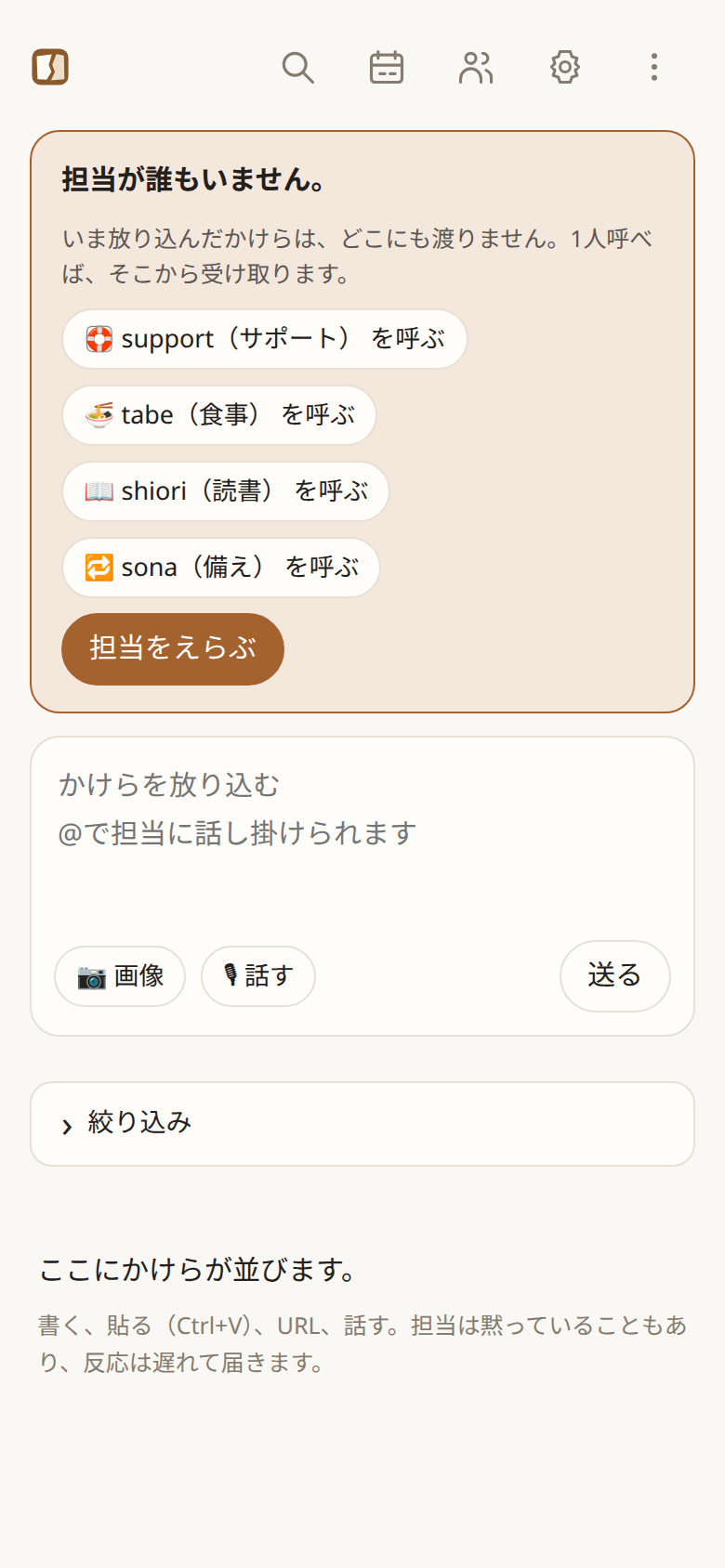
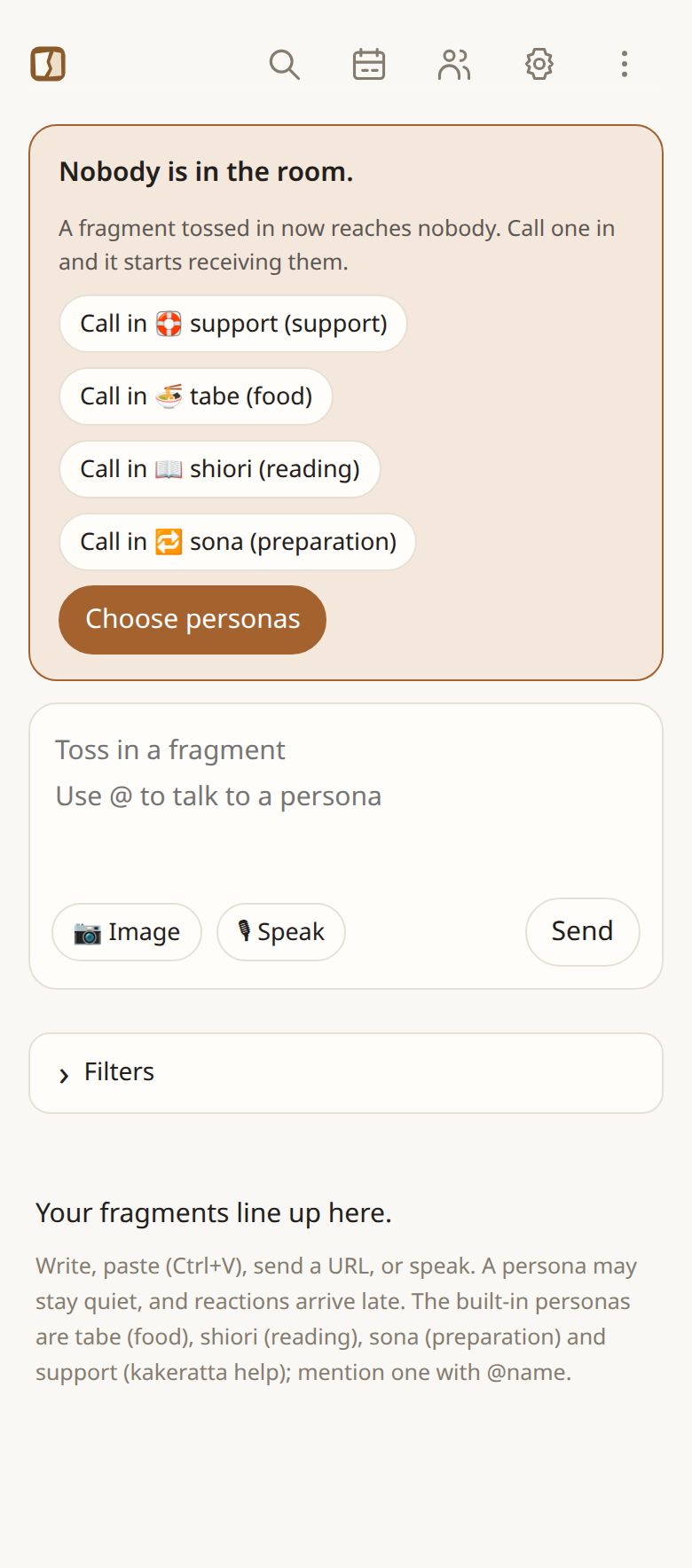
  3. 画面の上に「担当が誰もいません」と出ていたら、「〇〇 を呼ぶ」 で 1 人以上呼びます。誰もいないと、かけらは誰にも届きません。
  4. 欄に一言書いて 流す。これが最初のかけらです。
担当が誰もいない状態。ワンタップで組み込みの担当を呼べる
担当が誰もいない状態。ここから 1 人呼ぶと、以後のかけらを受け取ります。

API キーはサーバー側にだけ保存され、設定した接続先以外へは送られません。

2. かけらを放り込む

書く、貼る、URL、話す。どれも同じひとつの欄から入ります。

入れ方やり方
書く欄に書いて 流す。Ctrl(⌘)+Enter でも送れます。
画像PC はスクリーンショットを Ctrl+V で貼るだけ。スマホは 📷 画像 からスクリーンショットを選ぶか、その場でカメラで撮ります。画像の文字は読み取られ、あとから検索できます。
URLURL を書いて流すと、公開ページの本文を読み込みます。
話す🎙 話す で音声入力します(8. 音声入力と読み上げ)。

Kindle も有料記事も SNS も、画面に出ていればスクリーンショットで放り込めます。一言と画像を一緒に送ることもできます。投稿に自動で添えられるのは「今どこで何時か」だけです。行き先や時刻は文面に書けば担当が読み取ります。位置情報は任意です。

3. 反応を読む・返す
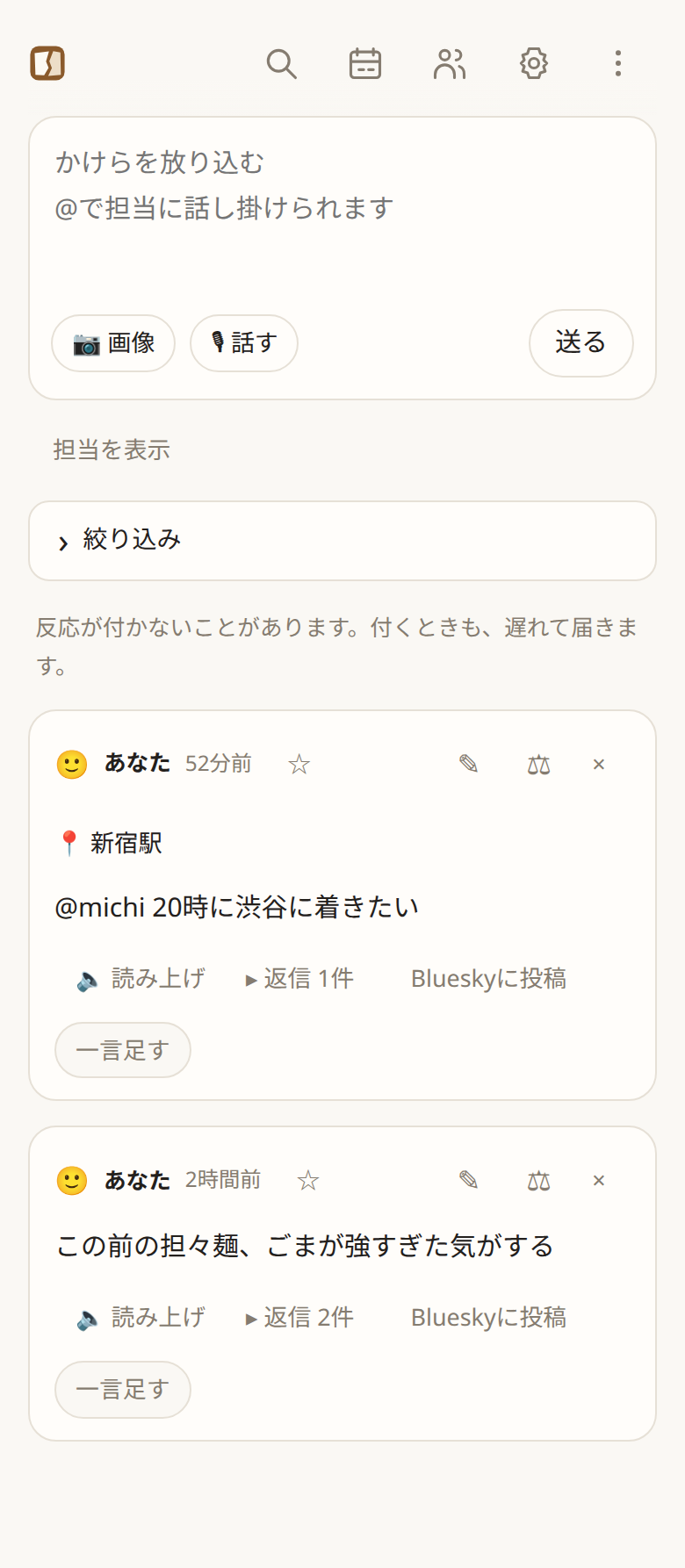
タイムライン。自分のかけらの下に、担当の発言が折りたたまれて並ぶ
自分のかけらと、その下の担当の発言。会話は「返信 N件」の下にたたまれます。

反応の届き方

  • 担当の反応は少し遅れて届きます。反応が付かないこともあります。 担当は喋らずに覚えるだけのこともあるからです。
  • 必ず答えてほしいときは @名前 で指名します(例:@tabe)。指名された担当は必ず返事をします。担当の名前が並んだバーを押すと、@名前 が書き込まれます。
  • 担当の発言や自分の返信は 返信 N件 の下にたたまれます。表示中に届いた発言は、そのスレッドが自動で開きます。

返す・直す・消す

ボタンできること
一言足す自分の投稿に続けて書く
返す担当の発言に返事をする
✎ / ×投稿を編集する / 削除する
⚖誰に届き、誰になぜ届かなかったかを見る(振り分けを直す)
返し方を直す担当の口調や指示を直す(返し方を直す)
🔈 読み上げ溜まった反応を順に読み上げる

投稿を削除すると、その下の担当の発言と自分の返信も消え、検索にも出なくなります。その投稿だけをもとに書かれた担当のメモも一緒に消えます。 ほかの投稿ももとにしているメモは残り、担当があとで整理します。

担当の回答や返信は × で消せます。それに(間接的にも)返事している発言も一緒に消え、スレッドのほかの発言は残ります。間違った回答を消すと、それを繰り返した返事も含めて、検索やスレッドの文脈として参照されなくなります。回答と一緒に書いたメモは残るので、メモも誤っていれば担当の記憶から直してください。

4. 担当を選ぶ・作る

担当は、一人の人物か一つの関心ごとについて、別々の記憶を持つ AI です。人物の担当にはその人の名前が出たかけらが、関心ごとの担当には本体が振り分けたかけらが届き、そのうえで覚えるか、喋るかを各担当が決めます。担当同士でメモは共有しません。

最初からいる 5 人

名前分野受け取るもの
@tabe食事店、料理、飲み物、食事やメニューの写真、「何食べよう」
@supportサポートkakerattaの使い方・仕様・設定・困りごと(新規利用時は有効)
@infographic図解文章・展開済みURL記事・解釈済み画像を表示言語でHTMLの図解に。記憶なし・常にUltra(新規利用時は有効)
@shiori読書電子書籍のキャプチャ、引用、書名と著者、読んだ感想
@sona備え外出前の持ち物、忘れ物、予定と天気を合わせた声かけ。繰り返す用事や一度きりの用の確認。新規利用時は有効

ヘッダーの 担当 で一覧を開き、有効にする で受け取る担当を選びます。担当は投稿された言語で答えます。
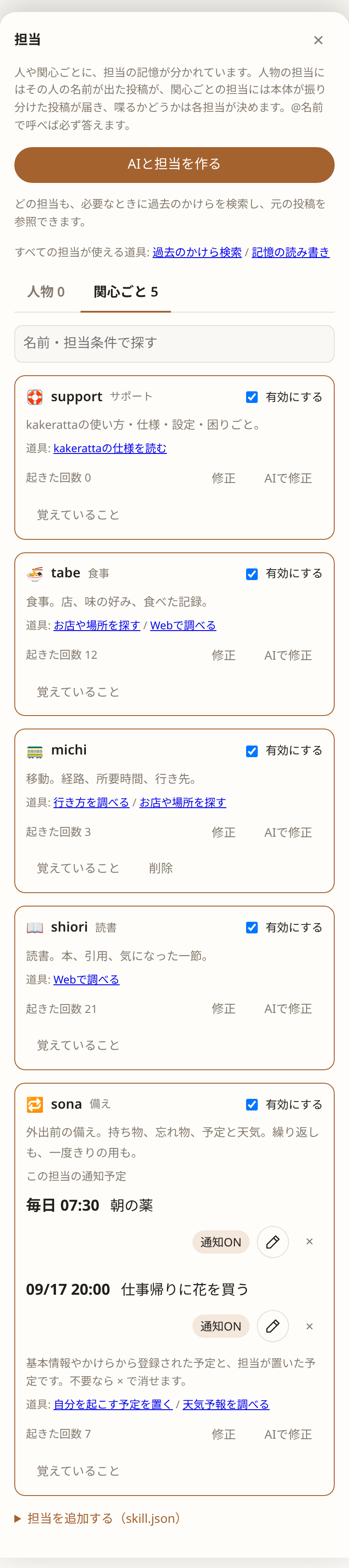
担当の一覧。分野、道具、メモ
担当パネル。分野、使える道具、メモの数。

AI と担当を作る

  1. 担当 を開き、関心ごと タブで AIと担当を作る を選びます。人物を覚える担当は、人物タブから作ります。
  2. 「どんなことの担当を作りたい?」に自分の言葉で答えます。「ワイン」だけでも始められます。
    例:美味しかったワインのラベルを送るので、銘柄やブドウ品種を教えてほしい。
  3. AI が名前、話し方、覚えることの下書きを作ります。確認して この内容で保存。
  4. 有効にする と、以後のかけらを受け取り始めます。

作成・修正時に 記憶する(オフにすると記憶を持たない回答専門になり、費用削減や不要なメモ防止になります)や、常に熟考する(通常の依頼もUltraで回答)を選べます。
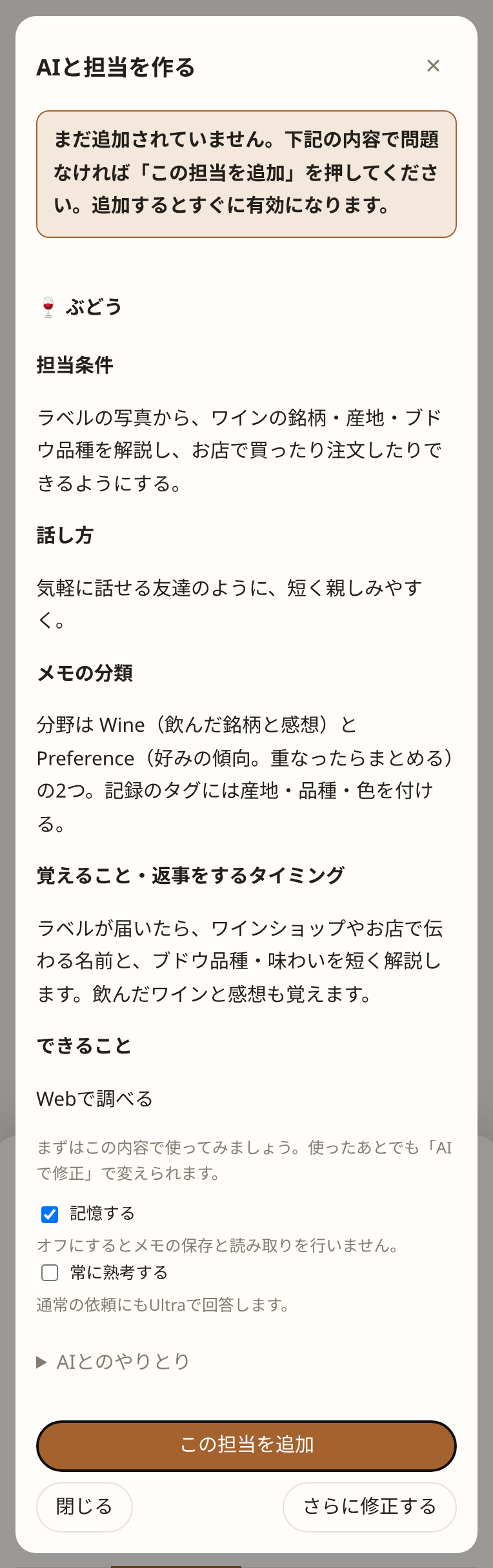
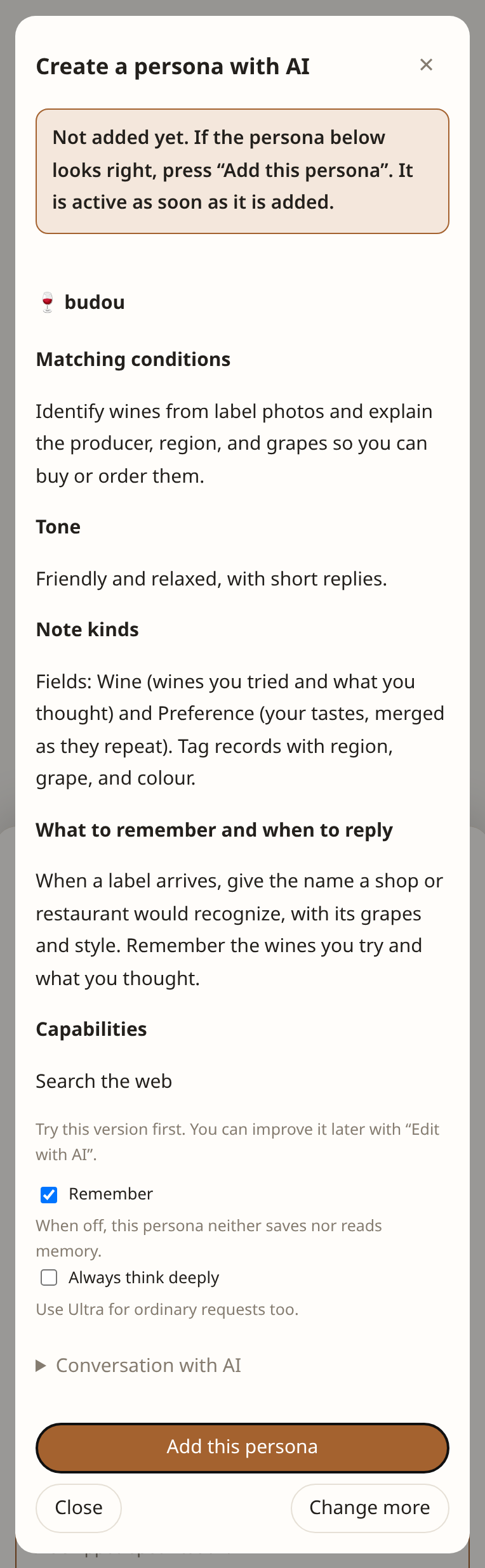
AIが下書きしたワイン担当を確認して保存する
下書きは、担当すること、話し方、メモの分類、覚えること・返事をするタイミングの順に確認できます。

人物の担当

母や友人のように、特定の一人を覚える担当も作れます。担当 の 人物 タブで AIと担当を作る を選ぶと、「誰のことを覚える担当を作りたい?名前や呼び名、あなたとの関係を教えてください。」と尋ねられます。入力欄の例を参考に、「大学時代の友人の佐藤さん。さっちゃんと呼んでいて、たまに一緒に食事をします。」のように答えると、人物の担当の下書きができます。人物を覚える担当かどうかは作成時に決まり、あとから切り替えることはできません。

  • 人物の担当は、本体の振り分けを通りません。 かけらに 呼び名 か キーワード が書かれているときだけ届きます。写真から読み取った文字も対象です。@呼び名 で指名することもできます。
  • 「佐藤」を登録すれば「佐藤くん」「さとうさん」にも届きます。名前を出さない話も拾えるよう、キーワードには言い換えや似た言葉(例:釣り、つり、釣行、海釣り)を並べます。
  • 人物の担当はその人との出来事(会話、贈り物、約束、貸し借り)を覚えます。誕生日や会う予定が近づくと声かけしてくれます(詳しい通知時刻のルールは 上級編 を参照)。
  • 伝えた誕生日・好み・出来事などは、担当の編集画面でいつでも見直し・修正できます。
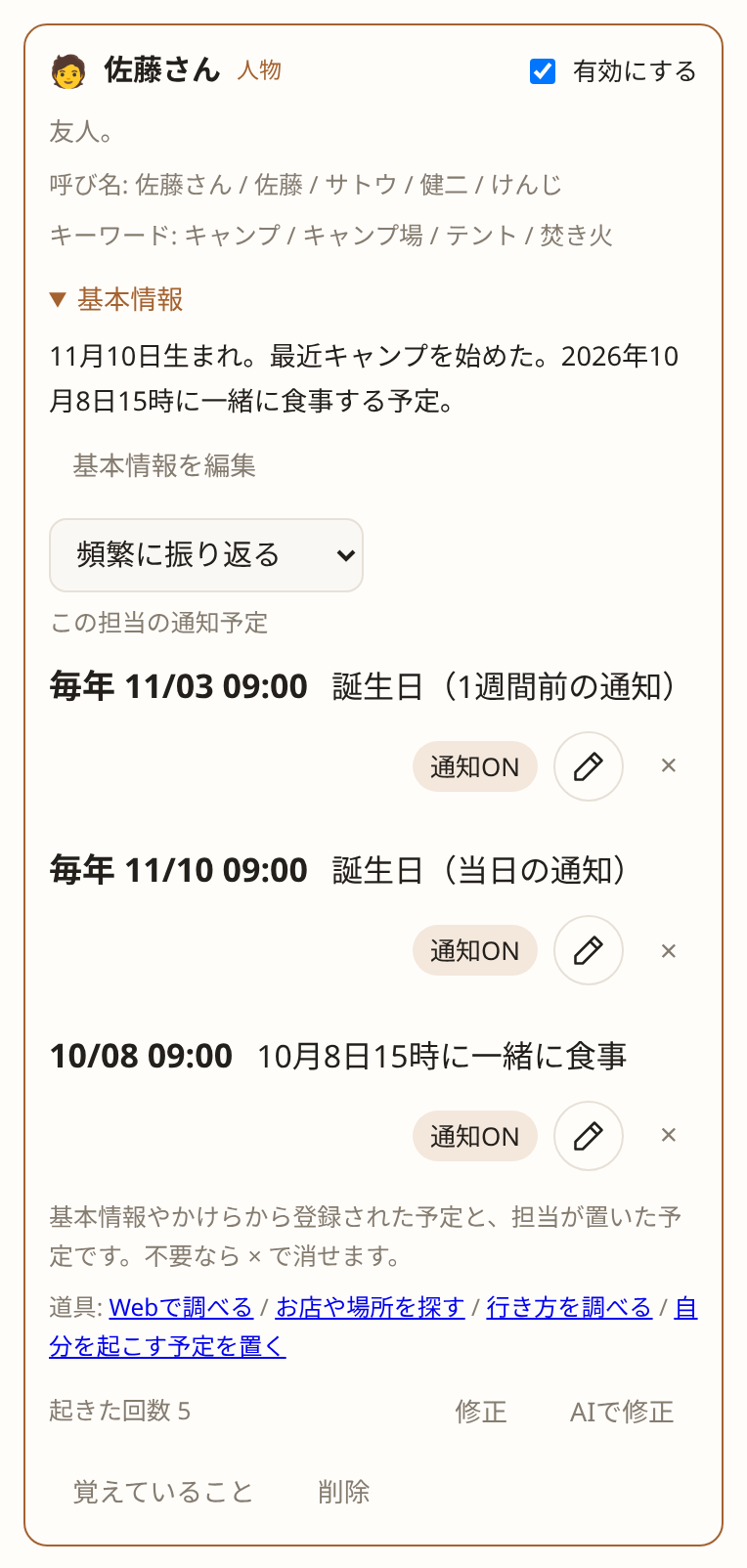
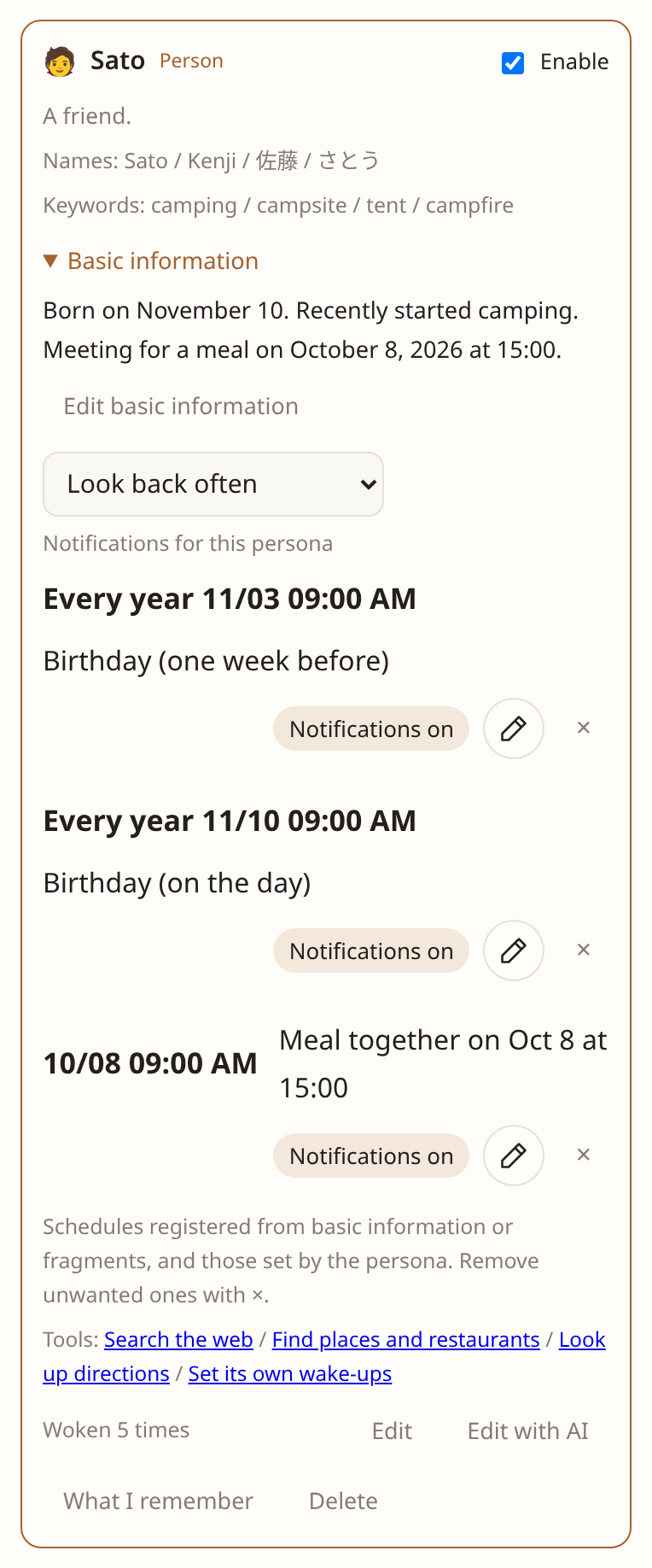
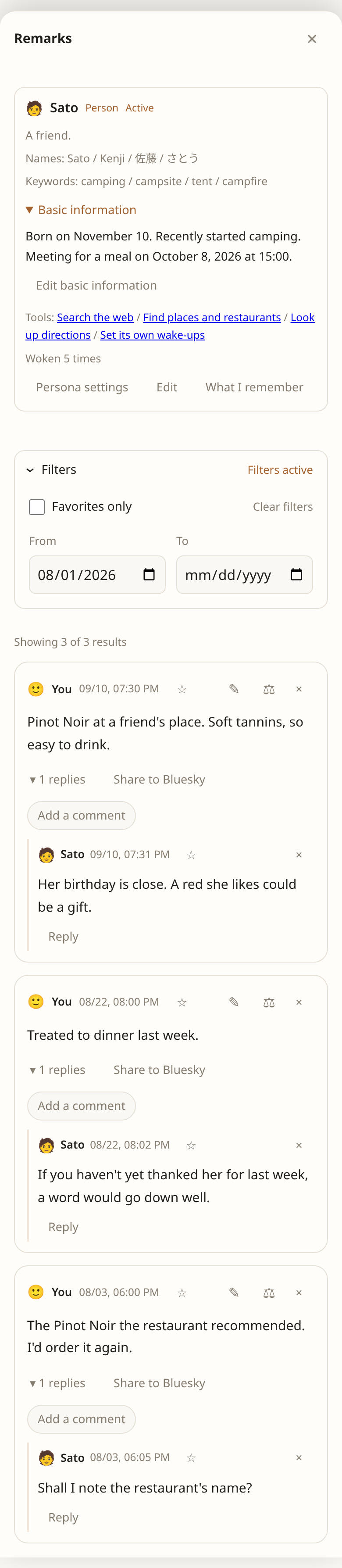
人物の担当「佐藤さん」のカード。呼び名、キーワード、基本情報の一覧(サンプル)
人物の担当のカード。呼び名・キーワードと、毎年の誕生日や会う予定の通知が並びます(サンプル)。

届かなかったかけらがあれば ⚖ の 呼んでほしかった からキーワードを足せ、関係のないかけらが届いたら 呼んでほしくなかった から一致した語を外せます(人物の担当のキーワードを直す)。

使いながら直す

担当の AIで修正 から「もっと短く返事してほしい」「なぜ気に入ったかも覚えてほしい」のように頼めます。組み込みの担当も同じように変えられ、それまでのメモはそのまま残ります。

担当の 削除 は、その担当のメモも一緒に消します。元に戻せません。受け取りを止めたいだけなら、有効にする をOFFにしてください。

通知予定は担当一覧と発言一覧のカードで確認できます。不要な予定は各予定の × で取り消せます。

担当からの声かけ

記憶を持つ担当は、伝えたいことがあるときや、出かける前の持ち物点検・雨予報の傘の助言(sona)など、必要なタイミングで話しかけます。話す量や口調は担当のキャラクターに合わせます。「記憶する」をオフにすると定期的なチェックインは止まりますが、明示的な通知予定は引き続き実行します。毎日の起床時刻や月次まとめの仕組みは 上級編 にあります。

リマインダーのPush通知

  1. iPhone・iPadでは、kakerattaをホーム画面に追加し、そこから開きます。
  2. 設定 → この端末 → リマインダーのpush通知 を開き、通知を有効にする を押してブラウザの通知を許可します。受け取りたい端末ごとに設定してください。
  3. 誕生日や予定のリマインダーを、ブラウザを閉じていても受け取れます。通知を開くと該当の投稿に移動します。同じ場所の 通知を無効にする で、その端末への配信を止められます。

通知にはリマインダー本文が最大120文字で表示されます(省略時は末尾に「…」)。ロック画面での表示は端末の設定に従います。通常の返事・チェックイン・今月のまとめは通知しません。HTTPSと対応ブラウザが必要です。配信に失敗しても投稿はタイムラインに残ります。

通知が届かないときは、この端末での有効化、ブラウザの通知許可、ログイン状態、予定ごとの通知設定を確認してください。「サーバーで設定されていません」と表示される場合は運用者の設定が必要です。

予定だけをまとめて見る・編集する

ヘッダーの「予定」(スマホではカレンダーアイコン) で、すべての担当の予定を次の実行日時順に確認できます。担当名や予定の内容で検索できます。各予定の鉛筆マークから 日時・通知を編集 モーダルを開き、次の実行日時と Push通知 を変更して保存してください。入力欄の日時は、表示されたこの端末のタイムゾーンです。

担当ごとのカードや発言一覧でも編集できます。通知OFFでも予定の実行とタイムラインへの投稿は続きます。「この予定は通知しないで」のように担当に頼むこともできます。予定自体を止める場合は × で取り消してください。

毎日の予定は、予定のタイムゾーンで変更後の時刻を引き継ぎます。年次予定も時刻は引き継ぎますが、日付変更は次回だけです。実行を始めた回には変更が間に合わないことがあります。保存に失敗した場合は入力を残して再試行できます。

5. 覚えていることを確かめる

担当の 覚えていること を開くと、その担当が覚えている内容をいつでも確認・編集・削除できます。AIが勝手に覚えたままブラックボックスになることはありません。
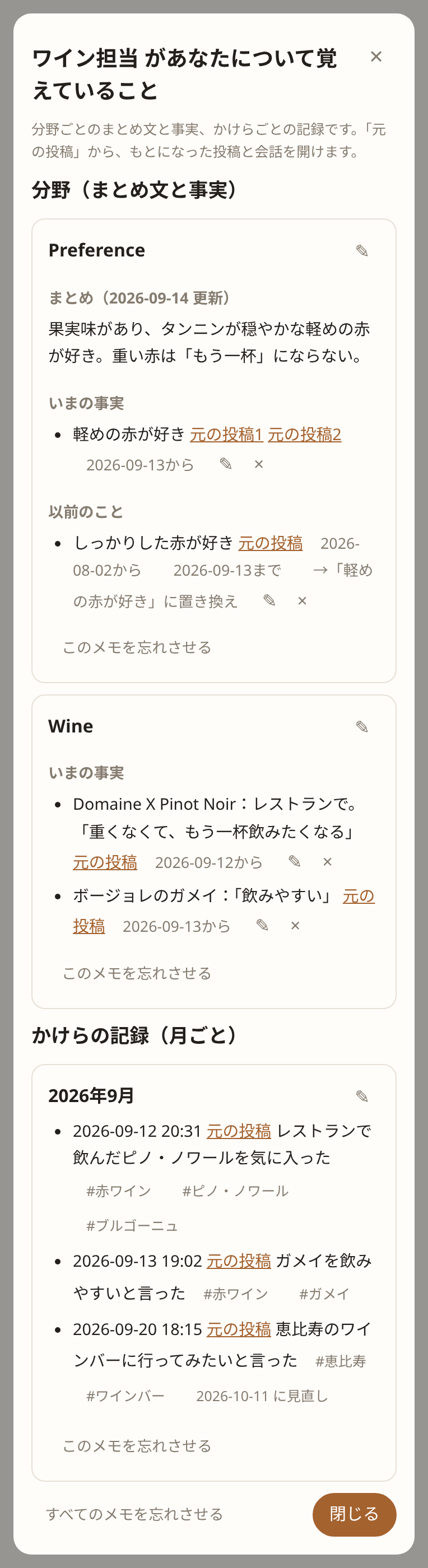
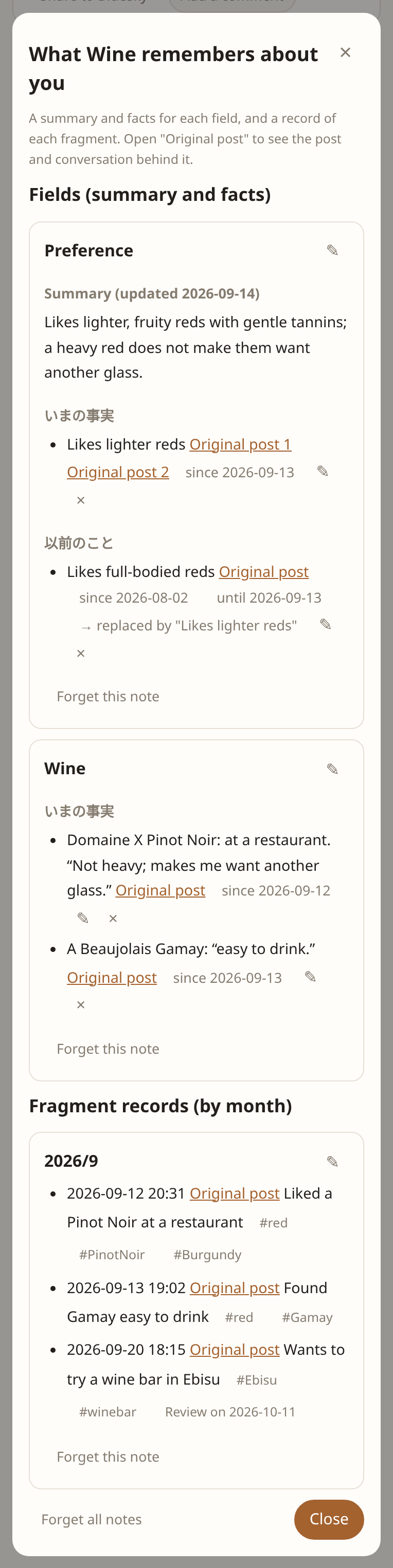
ワイン担当の好みとワインの記憶。タグ、元投稿へのリンク、✎ での編集、個別削除(サンプル)
覚えた内容、タグ、元の投稿、✎ での編集、このメモだけを忘れさせる操作(サンプル)。

できること

  • 読む: 分野ごとの事実や、受け取ったかけらの記録が月ごとに並びます。
  • たどる: 各メモの 元の投稿 を押すと、そのメモのもとになった会話や写真がその場で開きます。記録の #タグ を押すと、その話題だけに絞り込めます。
  • 直す: 誤字や解釈の違いがあれば、横の ✎ でいつでも手で直せます。
  • 消す: 忘れさせたいメモは × や このメモを忘れさせる で消せます。最初からやり直すときは すべてのメモを忘れさせる を使います。元のかけらを削除すると、そのかけらだけに基づいていたメモも消えます。
  • 見直す・お別れ: その場限りのメモは自動で消え(… に消える)、古いメモはチェックインで「そろそろ忘れていい?」と担当が尋ねてきます(… に見直し)。

事実とまとめ文の更新ルールや、過去の事実への移行など、記憶システムの詳しい仕組みは 上級編:記憶の仕組みと見直し をご覧ください。

削除は元に戻せません。消したことでも、残っている投稿を担当が検索して、また覚えることがあります。

たとえば「このワインが好き」という誤ったメモは個別に消し、「一度飲んだだけで好みと決めない」というルールは AIで修正 で伝えます。AIで修正しても、すでにあるメモは書き換わりません。

6. お気に入りに残す

あとで読み返したい投稿や担当の回答の ☆ を押すと、★ に変わり、お気に入りに保存されます。自分の投稿・返信も保存できます。担当のメモに残らない回答も、ここから読み返せます。

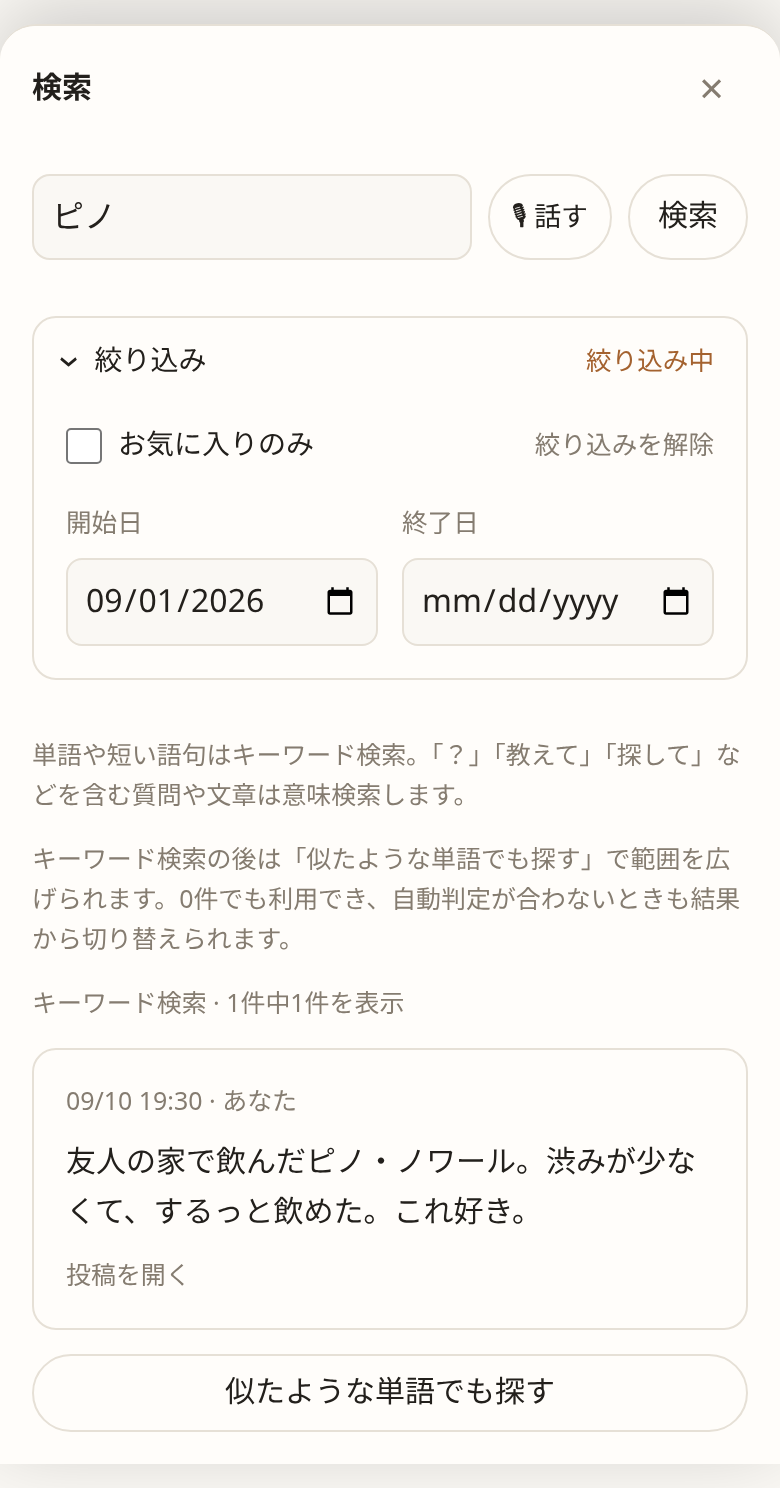
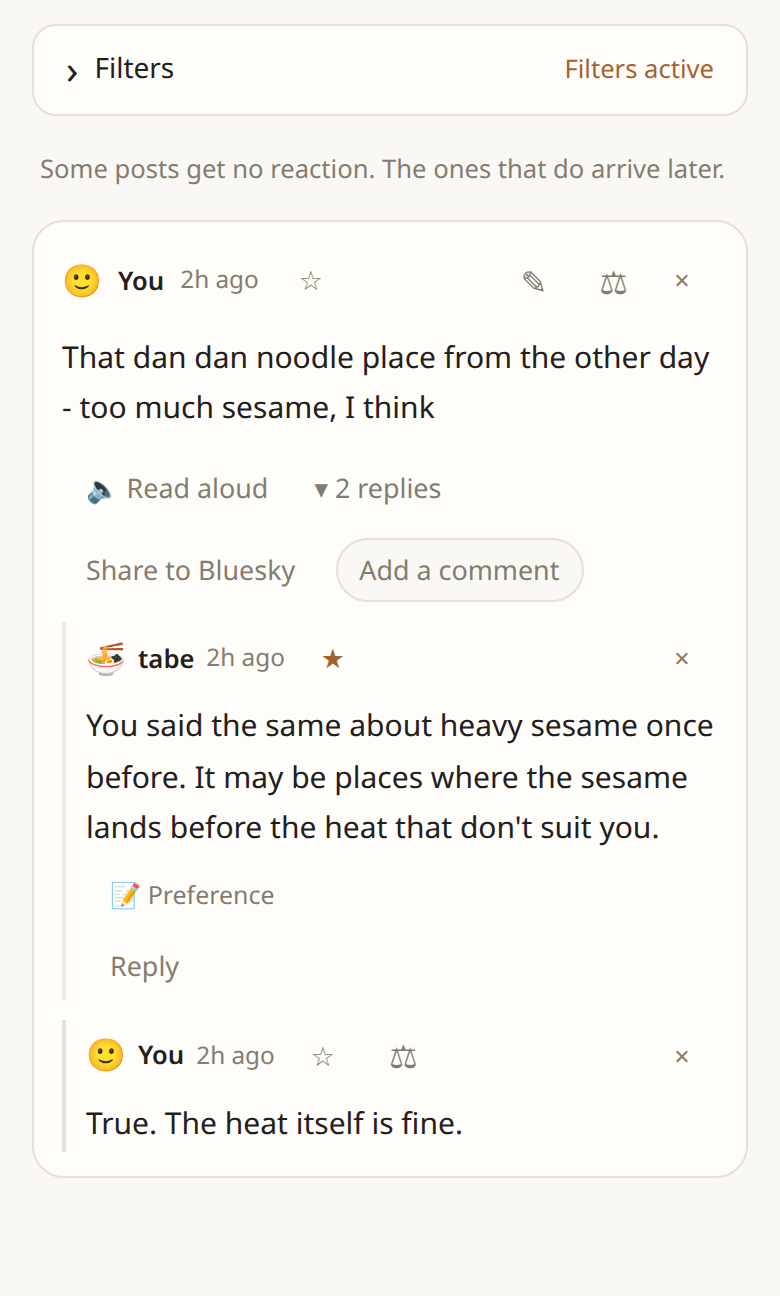
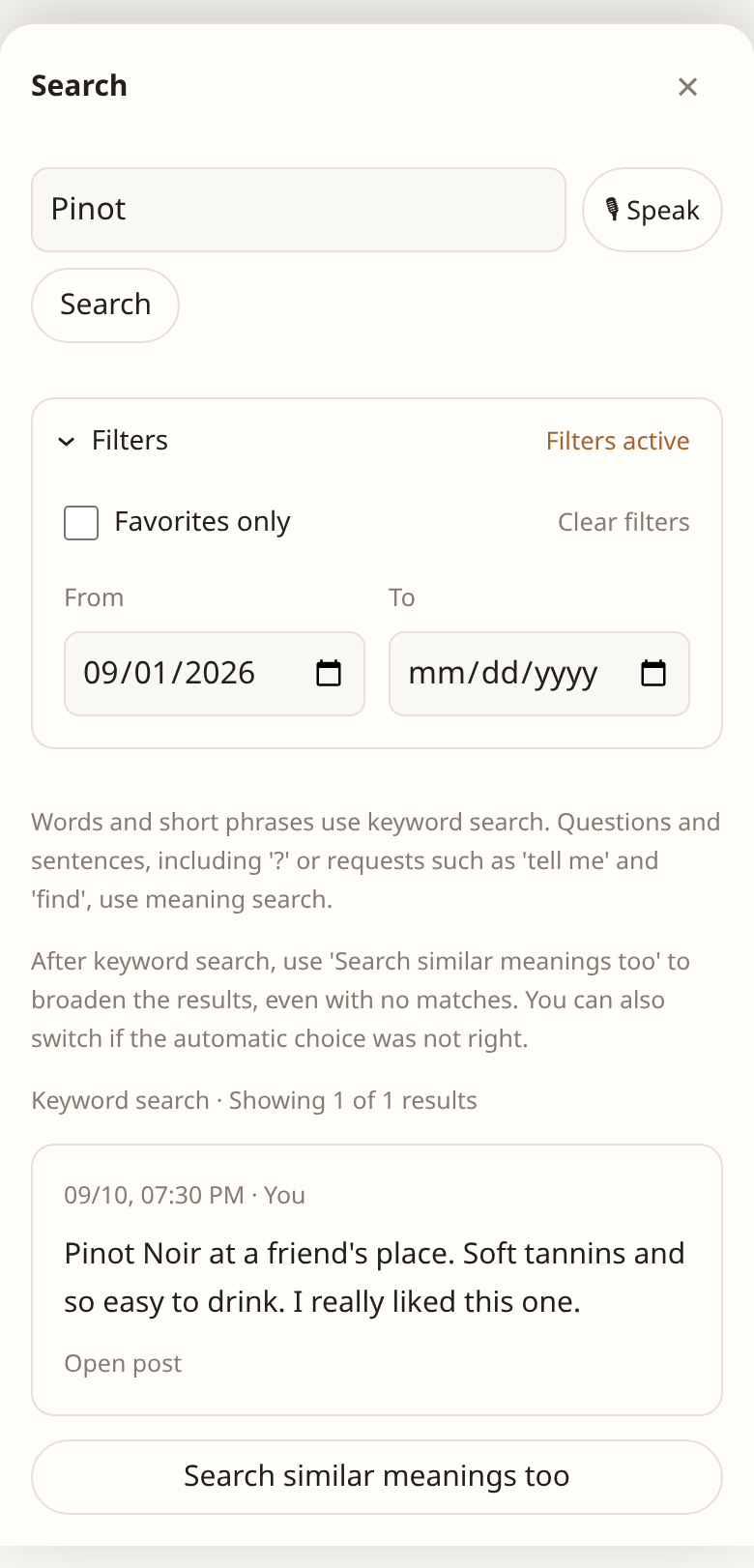
タイムライン上の 絞り込み を開き、お気に入りのみ をオンにすると、保存した投稿・回答を会話と一緒に表示します。開始日・終了日 で投稿日時を絞れます。終了日も含みます。発言一覧でも同じ絞り込みを使えます。閉じても条件は維持され、「絞り込み中」と表示されます。
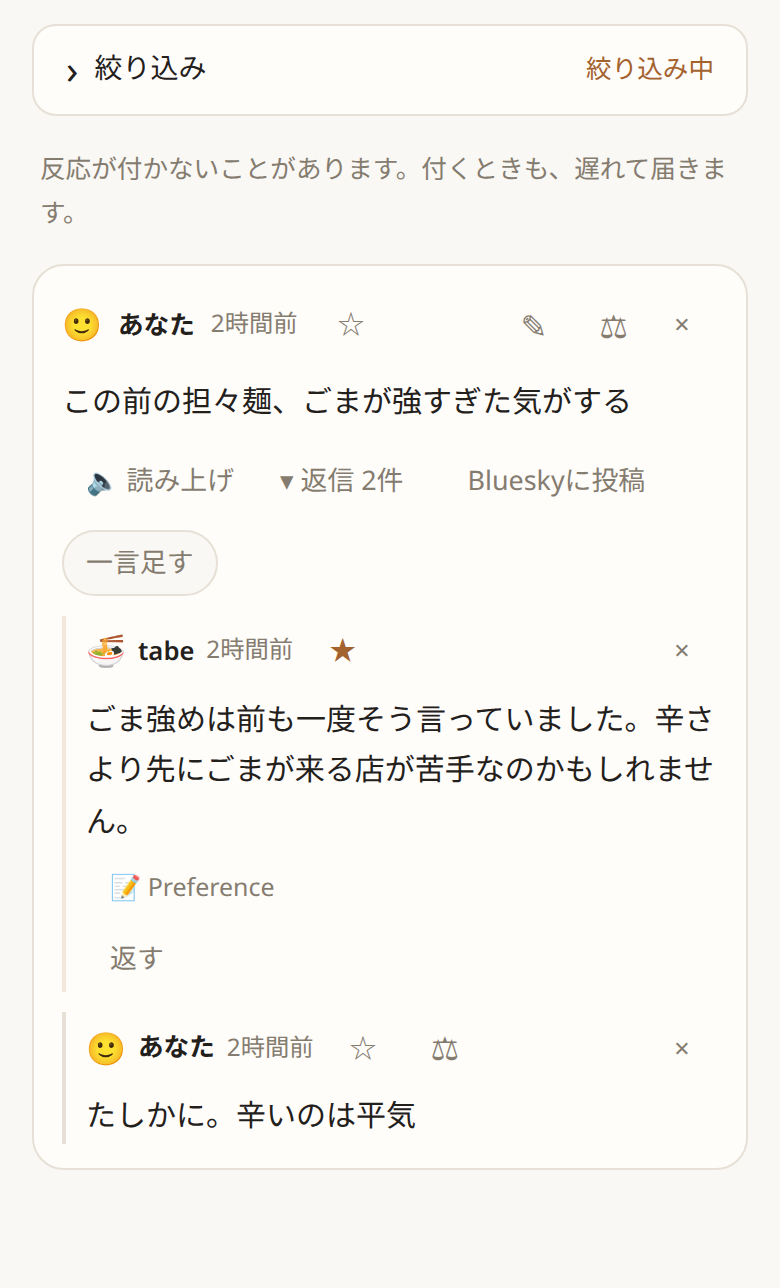
タイムラインでお気に入りの回答を会話と一緒に表示(サンプル)。

★ で解除するときは、どの画面でも確認します。キャンセルするとお気に入りも表示も残ります。解除しても投稿は消えません。

入力欄の下の担当を右クリック(スマホは長押し)し、発言一覧 を選ぶと、その担当の発言を開けます。
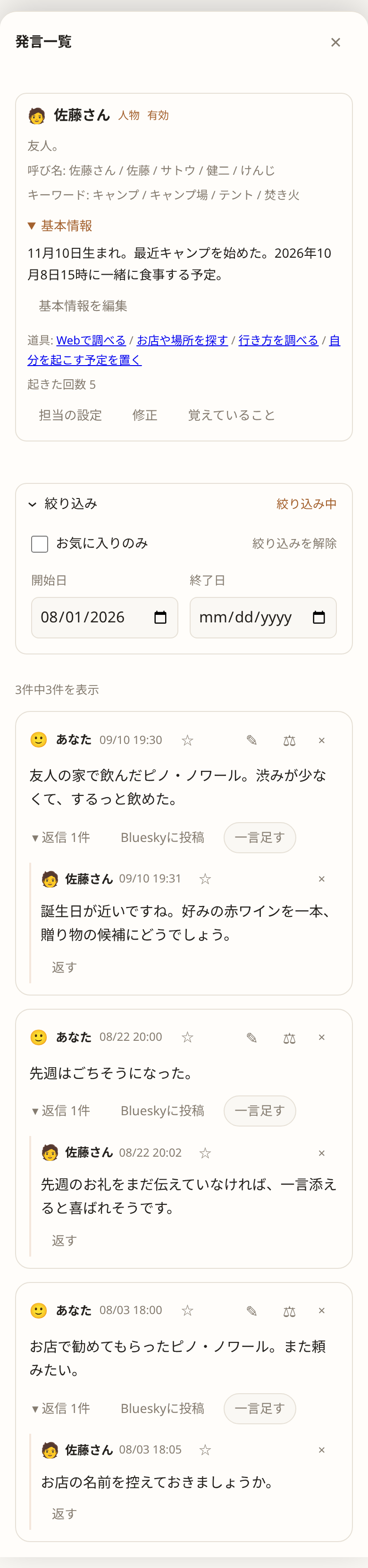
発言一覧も開始日・終了日で絞り込めます(サンプル)。

8. 音声入力と読み上げ

  • 🎙 話す を押すと、ブラウザの音声認識で聞き取ります。無音が続くと自動で止まります。
  • 送信の合図(例:「以上」)を決めておくと、文の最後にそう言った時点で投稿されます。
  • 自動送信前にAIで文章を整える をONにすると、合図で送るときだけ、句読点や言いよどみを整えます(初期状態はOFF)。
  • 🔈 読み上げ は、溜まった反応を順に読み上げます。

合図、無音での停止、声と速さは 設定 → 上級オプション → 音声 で変えられます。

9. オフラインで使う

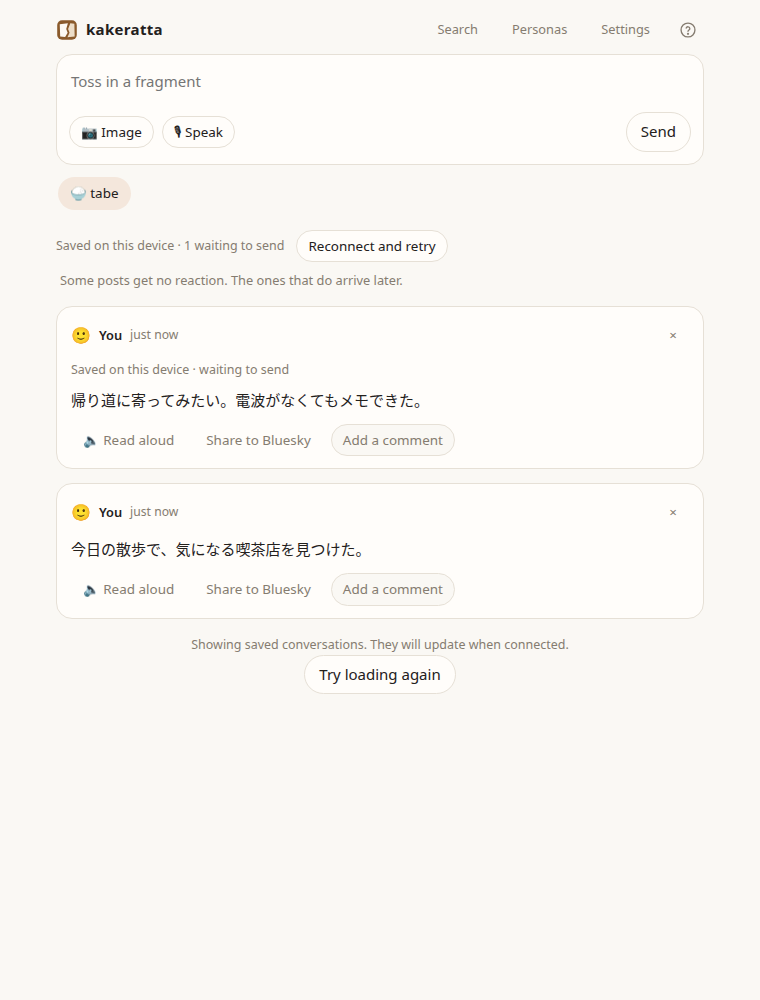
一度オンラインで開いた端末なら、電波がなくても文章・画像・URL・返信を書けます。書いたものは「端末に保存済み・送信待ち」として残り、アプリを開いている間に接続が戻ると自動で送られます。担当の反応は、サーバーに届いてから始まります。
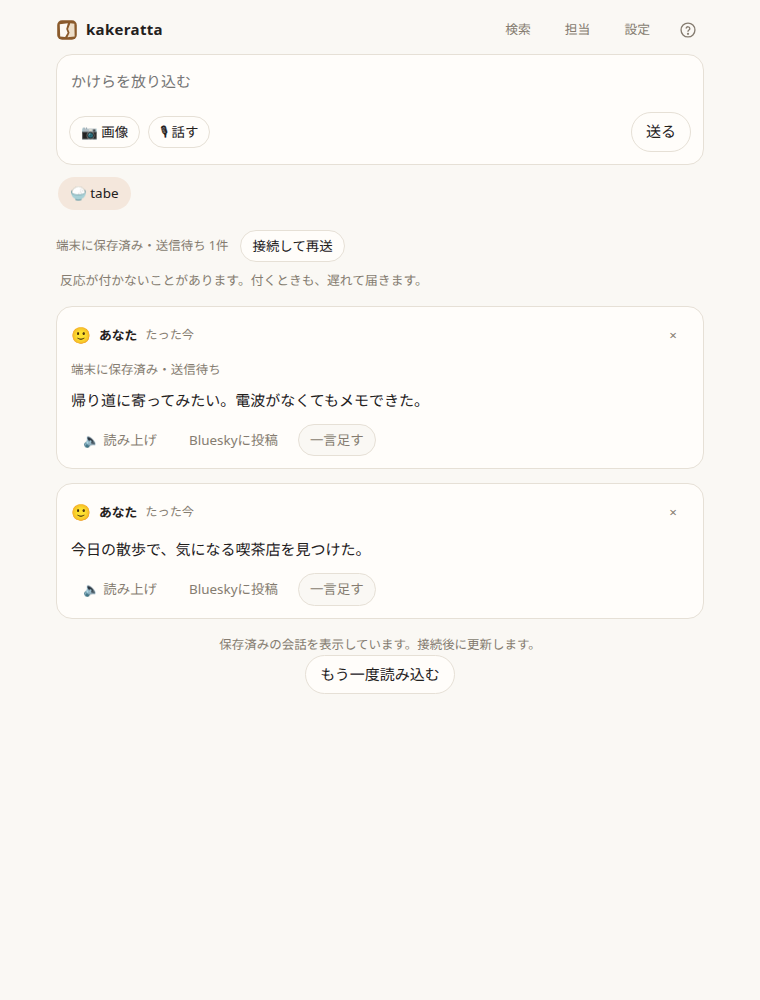
オフラインで保存した投稿と送信待ち件数(サンプル)
オフラインで保存した投稿と、送信待ちの件数(サンプル)。
  • 送信に失敗したときは 接続して再送 でやり直せます。二重に投稿されることはありません。
  • 送信待ちは、ブラウザのデータを消すと失われます。ログアウトするときは確認のうえ、この端末の保存データを消します。
  • 直近20件の会話は端末にも保存され、次に開いたときすぐ表示されます。

10. 困ったとき

反応が付きません。
担当が誰も有効でないか、どの担当の分野にも当たらなかったか、担当が「覚えるだけ」にしたのかもしれません。⚖ で誰に届いたかを確認できます。必ず答えてほしいときは @名前 で指名してください。
設定画面が閉じられません。
AI の接続が済むまでは閉じられません。API キーを入力してください。
検索で「語句の一致で探しました」と出ます。
意味で探す準備が終わっていないか、接続できない状態です。語句で見つかった結果は表示されています。少し待ってから検索し直してください。
画像の文字が読めていません。
読み取りには少し時間がかかります。しばらくして投稿の「読み取り結果」を開いてください。画像は1投稿あたり 20 MiB までです。
データはどこに保存されますか。
アカウントごとに分かれたサーバー上に保存され、ほかの人からは見えません。手元に保存したいときは 設定とデータ を見てください。

kakeratta 上級編

担当の振り分けや返し方の調整、担当が起きるタイミング、Bluesky・外部エージェント(Hermes、Obsidian)との連携、設定とデータ、担当が使う道具を説明します。毎日の使い方は 基本の使い方 を見てください。

1. 振り分けを直す

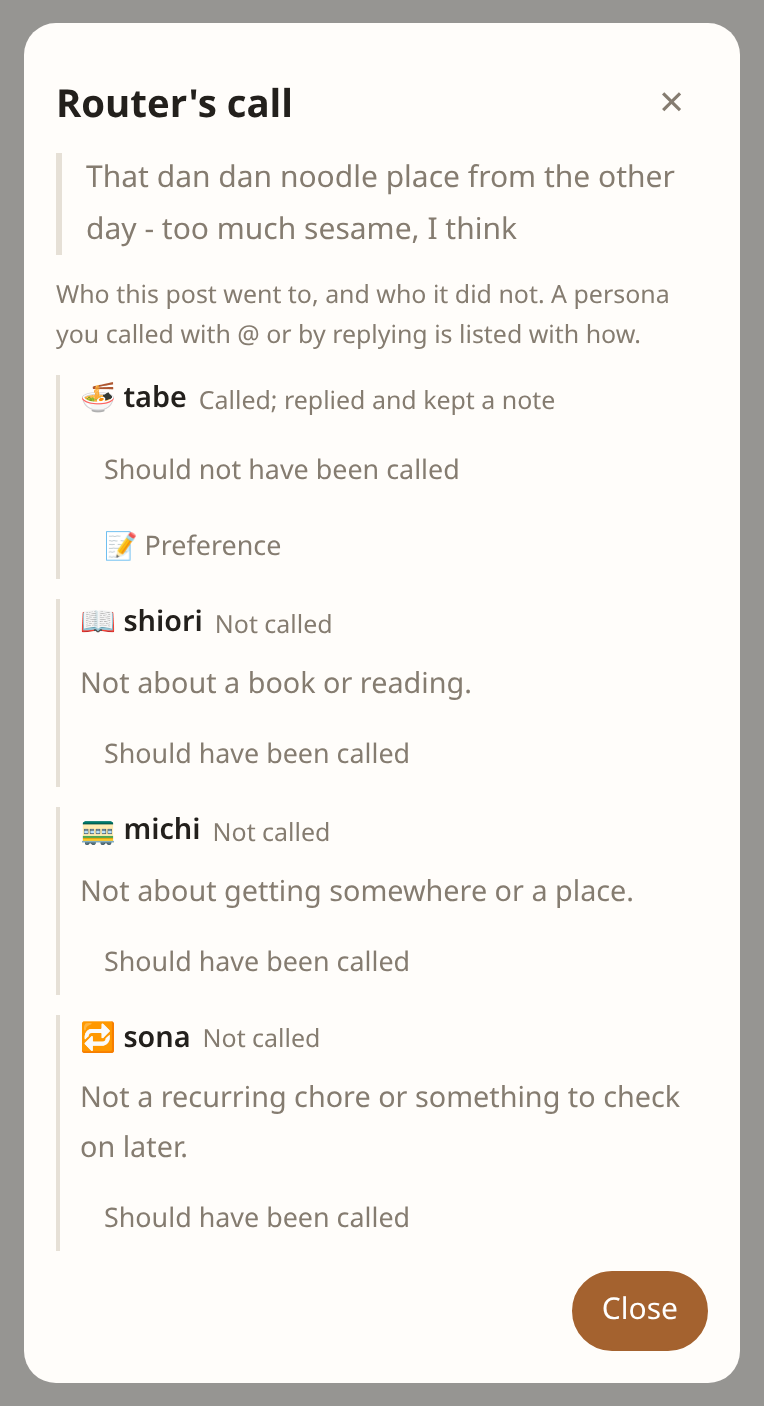
かけらをどの担当に渡すかは本体が決めます。自分の投稿や返信の ⚖ を押すと、呼ばれた担当と、呼ばれなかった担当ごとの一行の理由が出ます。@名前 で指名した担当は、あなたが選んだので出ません。

指名と宛先の優先ルール: @名前 で指名した投稿や、有効な担当への返信は、宛先の担当だけに届きます。別の担当を指名した場合は指名が優先されます。それ以外の投稿は、担当条件や人物の呼び名・キーワードで届け先を選びます。

@infographic の対象ルール: 図解したい投稿や回答に @infographic これをインフォグラフィックにして と返信します。別の担当の回答に返信した場合、その回答を図解します。「元の投稿を」「スレッド全体を」と明示して対象を変えることもできます。URLは展開された記事本文、画像は読み取り済みの説明や文字を材料にします。図解は依頼時の表示言語に翻訳され、画面内にHTMLで表示されます。
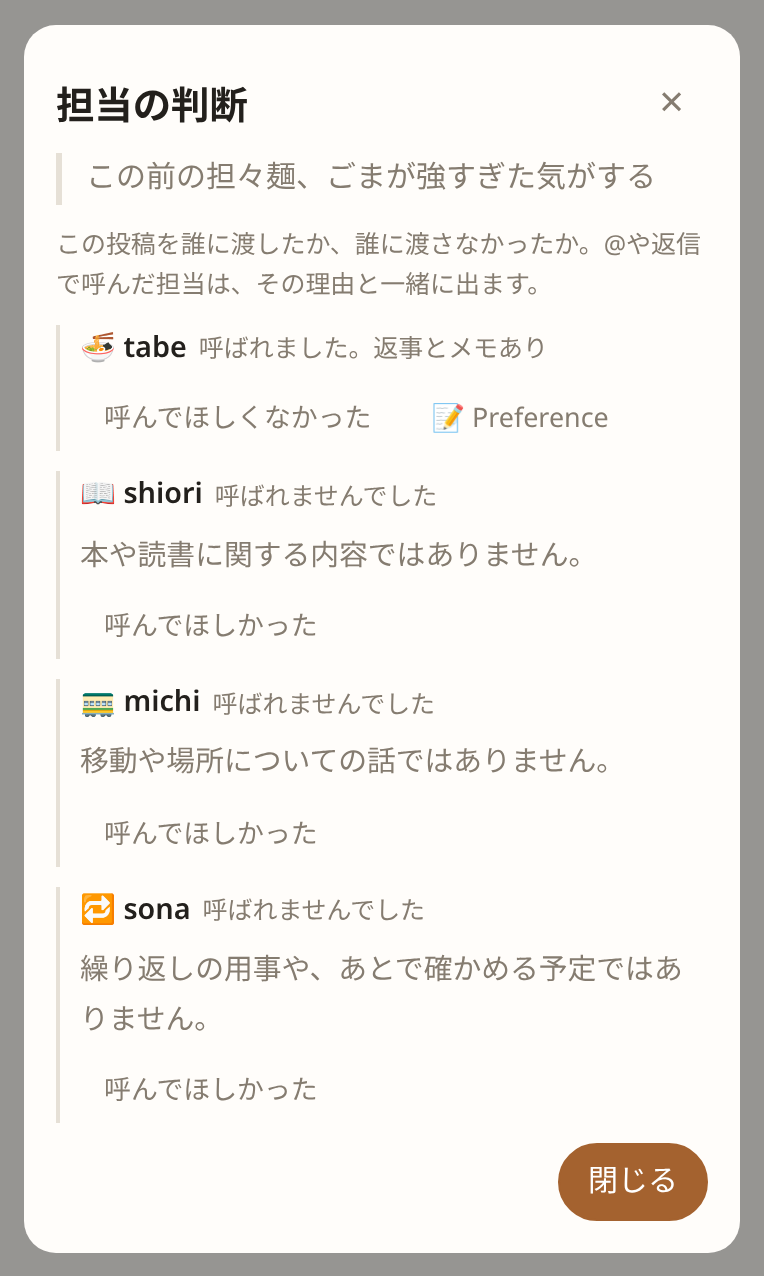
担々麺の投稿に対する担当の判断。tabe が呼ばれ、他の担当が呼ばれなかった理由(サンプル)
呼ばれた担当と、呼ばれなかった理由(サンプル)。

呼ばれた担当には、処理が終わったか、返事をしたか、メモを残したかが出ます。黙っていた担当には 返事がほしかった から 返し方を直す 流れに入れます。

担当の条件を直す

  1. 行の 呼んでほしかった(または 呼んでほしくなかった)を押します。
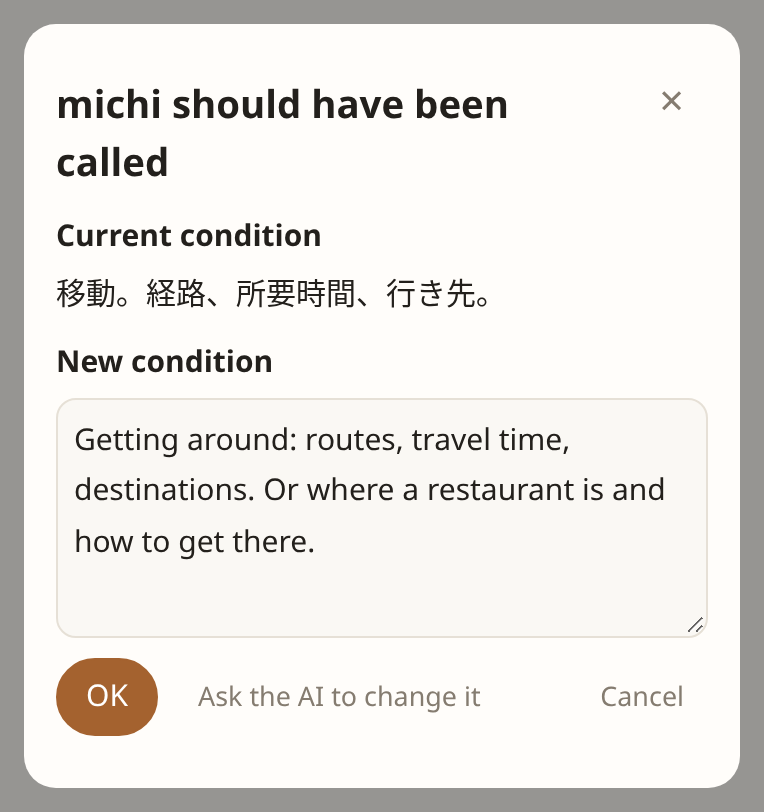
  2. 理由やどう変えてほしいかを書き、条件を作る を押します。AI が担当の判定条件だけを書き直します。
  3. 新しい条件は手で直せます。AIに変更を依頼 で書き直しを頼むこともできます。
  4. OK で保存すると、同じ投稿で振り分けを試します。「呼んでほしかった」で狙いどおり呼ばれたら、その担当に元の投稿を渡して返事やメモを残します。違えば理由を見てやり直します。
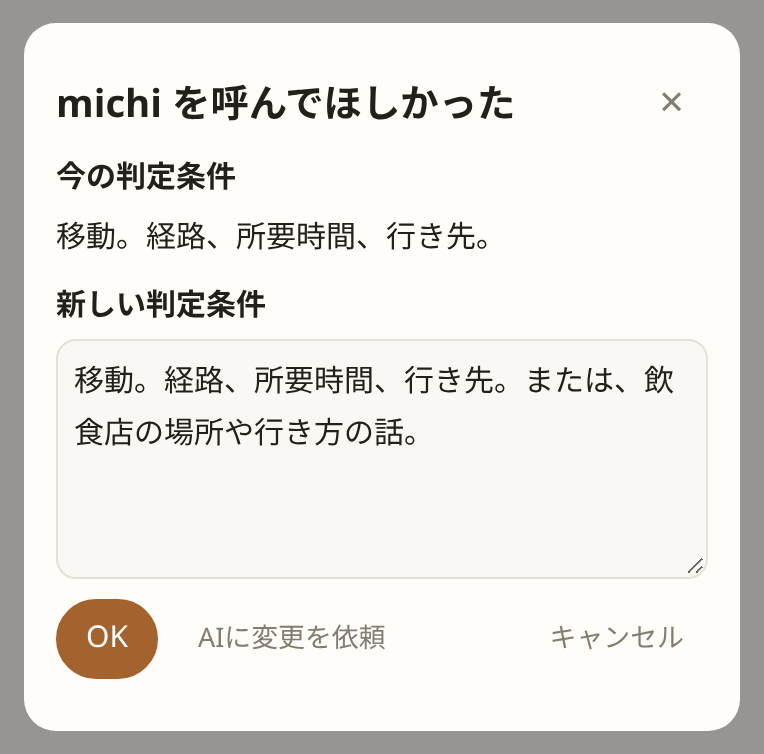
あなたの理由から AI が書いた ユーザーが作った移動担当 michi の新しい判定条件。保存前に手で直せる(サンプル)
今の条件と、AI が書いた新しい条件(サンプル)。

変わるのは判定条件だけで、口調や覚え方は変わりません。振り分けに Jev を使っている場合(設定とデータ)は理由が表示されませんが、条件は同じ手順で直せます。

人物の担当のキーワードを直す

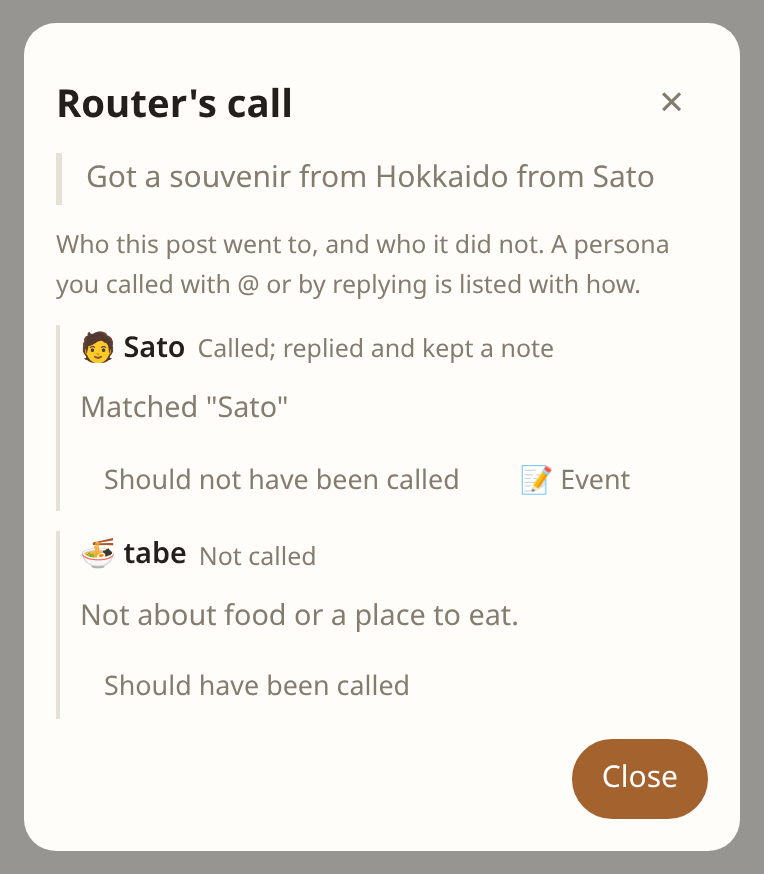
人物の担当には判定条件がなく、呼び名かキーワードが書かれたかけらだけが届きます。⚖ には、どの語で届いたかが「「佐藤さん」に一致」のように出ます。
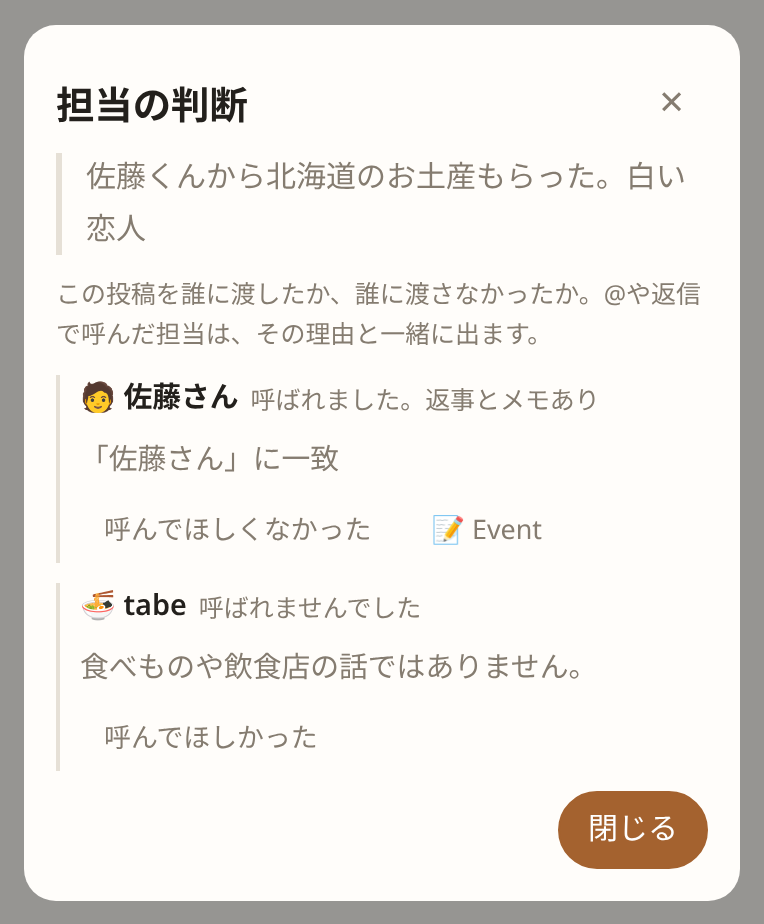
佐藤さんの担当が「佐藤さん」の一致で呼ばれたことを示す担当の判断(サンプル)
どの語で届いたかが出ます(サンプル)。
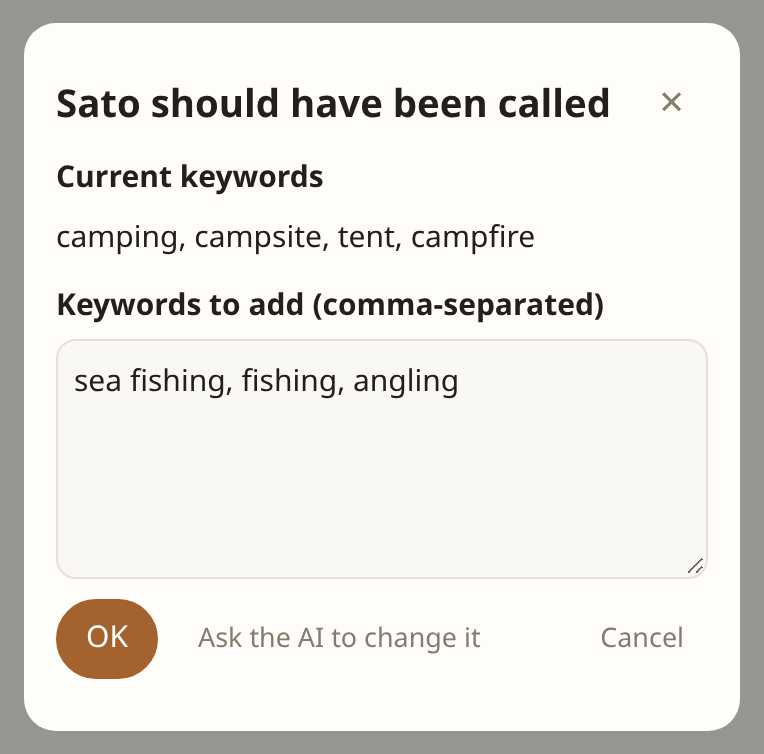
  1. 届かなかった人物の担当の行で 呼んでほしかった を押します。今のキーワードが出ます。
  2. どの語で呼んでほしいかを書き(空でもかまいません)、キーワードを作る を押します。AI がそのかけらに書かれている語を選び、似た言葉とあわせて足すキーワードを出します。
  3. 足すキーワードは手で直せます(読点区切り)。AIに変更を依頼 もできます。
  4. OK で今のキーワードに足して保存し、同じかけらで確かめます。足した語がかけらにあれば、その担当に元のかけらを渡します。なければそう伝えるので、やり直します。
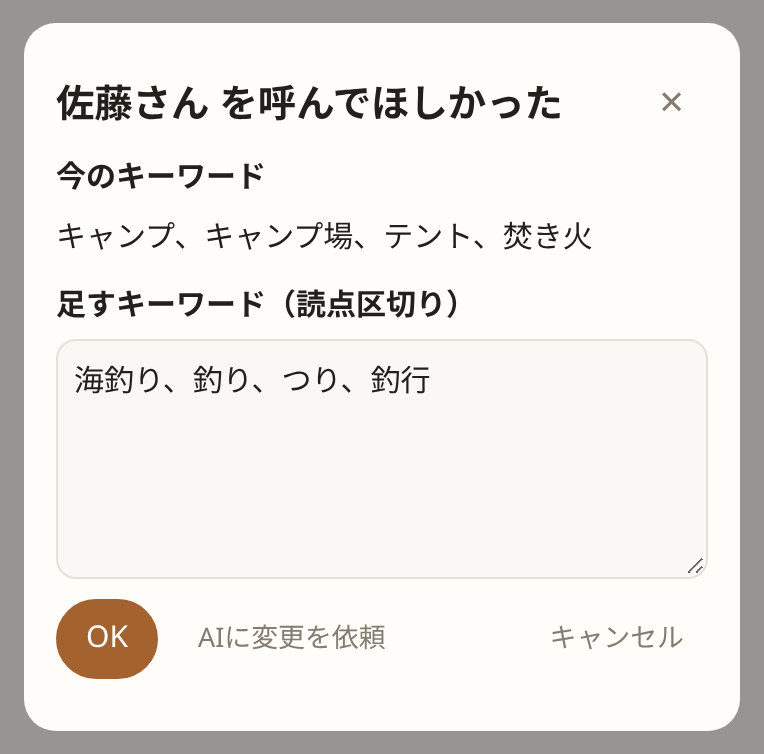
「週末は海釣りに行くらしい」から AI が出した、足すキーワード(サンプル)
今のキーワードと、AI が出した足すキーワード(サンプル)。

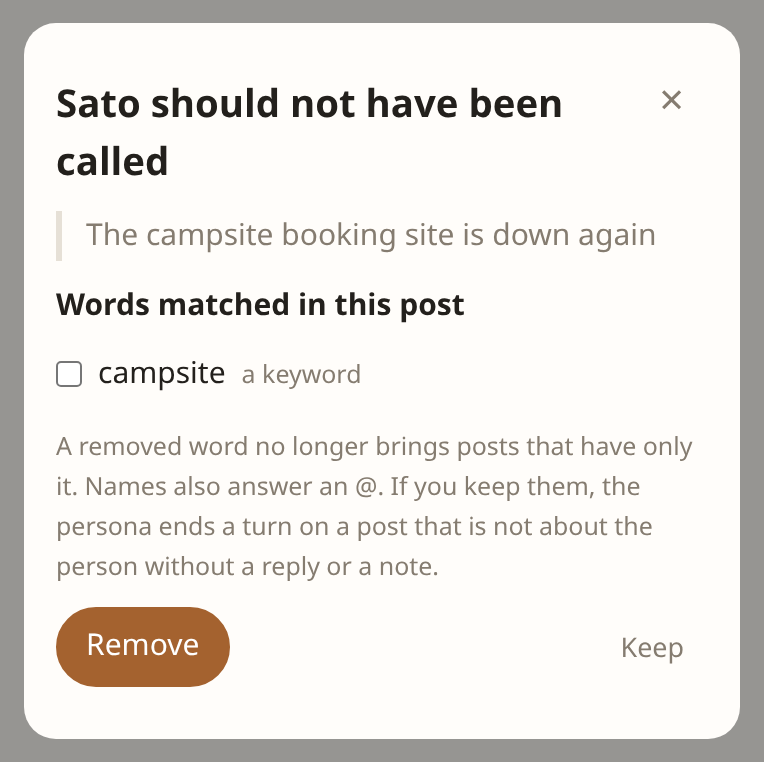
関係のないかけらが語の一致で届いたときは、呼ばれた人物の担当の行で 呼んでほしくなかった を押します。

  1. 呼び名とキーワードのうち、そのかけらに一致した語が並びます。担当の名前そのものは表示だけで、ここでは外せません(担当の 修正 で変えます)。
  2. 外す語にチェックを入れて 外す を押します。保存して同じかけらで確かめ、ほかの語でもまだ一致するなら、その語を伝えるので続けて外せます。
  3. 外さないなら 残す で閉じます。その人と関係のないかけらなら、担当はもともと発言もメモもせずに終えます。
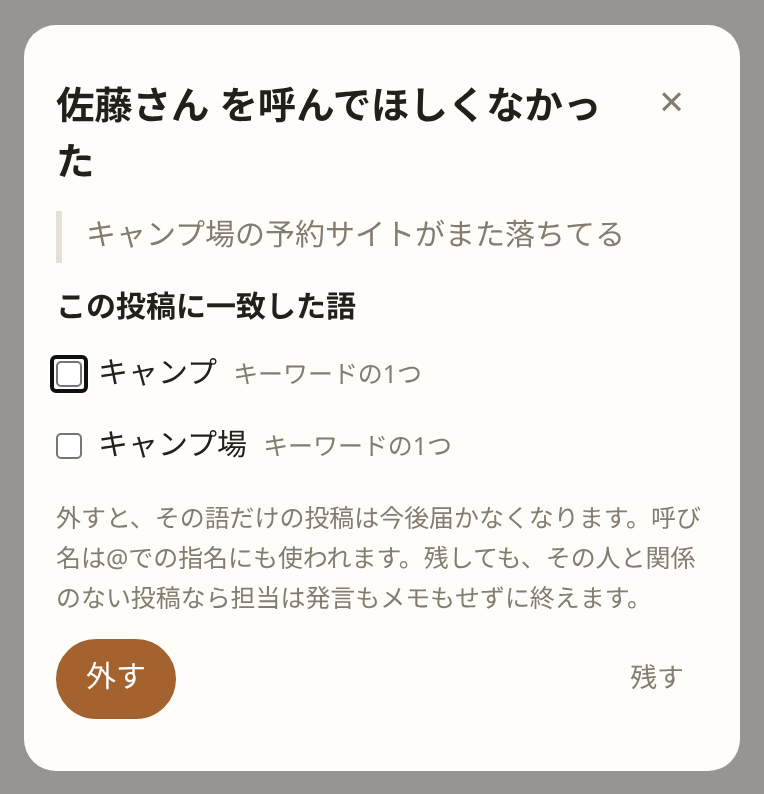
「キャンプ場の予約サイトがまた落ちてる」に一致した語と、外す・残すの選択(サンプル)
かけらに一致した語から、外すものを選びます(サンプル)。

外した語だけを含むかけらは今後届かず、外した呼び名は @ での指名にも使えなくなります。そのかけらに担当がすでに残した発言やメモは消えません。

2. 返し方を直す

担当の発言の 返し方を直す を押し、期待とどう違うかを書きます。AI が担当の 口調 と 指示 だけを書き直します。判定条件、名前、道具は変わりません。

  1. 違いを書いて 直し方を作る を押します。
  2. 新しい口調と指示は手で直せます。AIに変更を依頼 で書き直しを頼むこともできます。
  3. OK で保存すると、同じ投稿で担当が試し書きをします。タイムラインには載らず、メモも予定も書かれません。数分かかることがあります。
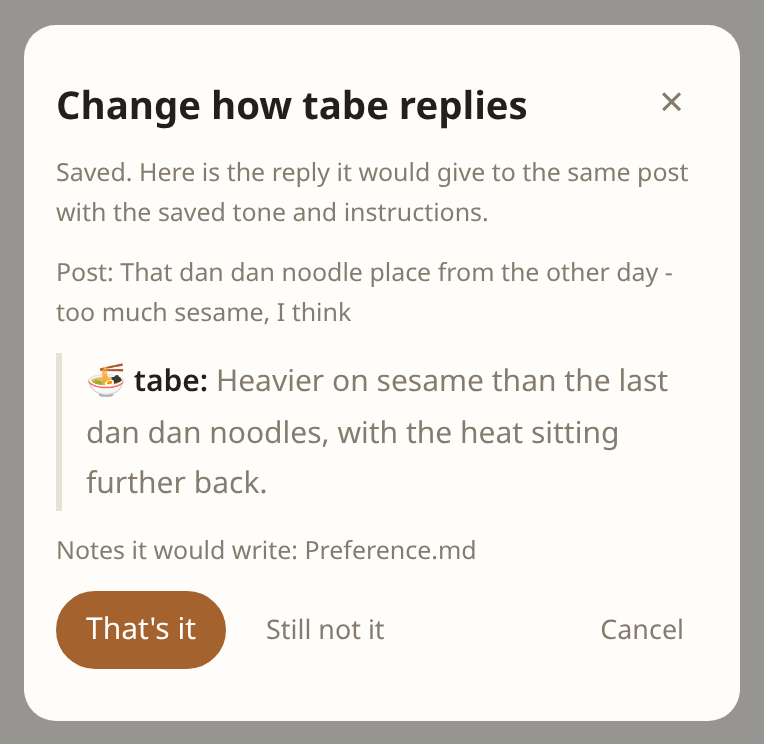
  4. これでよい で試し書きの返事とメモ変更を元のスレッドに反映します。まだ違う なら、試し書きを見ながらもう一度伝えます。
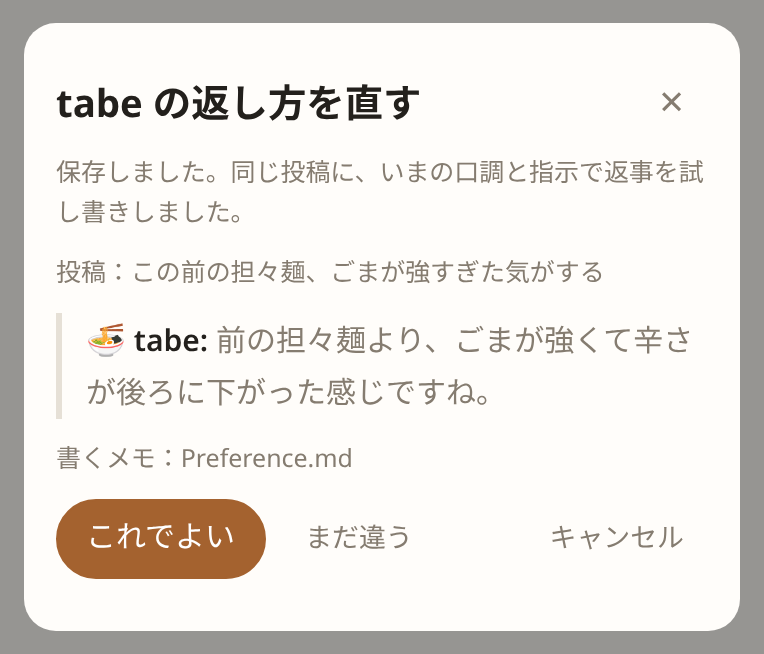
同じ投稿に tabe がいま返すなら、という試し書き。これでよいか、まだ違うか(サンプル)
試し書き。判断するのはあなたです(サンプル)。

保存した口調と指示は、試し書きの結果にかかわらずそのまま残ります。

3. 担当が起きるタイミング

担当が動くのは、次の3つのときです。

きっかけ決める人内容
かけらが届いたとき本体(振り分け)@名前 の指名や有効な担当への返信は宛先1人だけを起こし、指名を優先します。それ以外は担当条件や人物の呼び名・キーワードで選びます。
毎日のチェックイン本体記憶がオンの有効な担当が、7時〜21時のどこかで1日1回起きます。月1回振り返る人物は、今月のまとめの日に起きます。
担当が預けた予定担当schedule を持つ担当が、自分の記録から時刻を決めて起きます。

毎日のチェックイン

  • サーバーは毎分確認するので、混み具合によって少し遅れることがあります。
  • その日の時刻を過ぎてから担当を有効にした場合は、その日の分をすぐ実行します。21時を過ぎたら、その日の分は見送ります。サーバーの再起動後も当日分だけを実行し、過ぎた日の分はまとめて実行しません。
  • 担当が黙った場合や失敗した場合も、その日の1回に数えます。メモを消しても、同じ日にもう一度は起きません。
  • 時刻が夜から朝へ回り込む日(前の日 20時台 → その日 7時台など)は、数時間おきに2回起きないよう、その日を休みにします。
  • 最近の記録は、前回のチェックインから今までの分を読みます。休んだ日や見送った日があっても、その間の記録を取りこぼしません。
  • チェックインでは現在地を使わないので、経路検索はできず、店舗検索は名前での検索だけになります。

「外部エージェントを優先する」をONにした担当では、チェックインで何を整え、何を聞くかを外部エージェントが考えます。時間内に外部エージェントが応じなければ、内蔵モデルが代わりに考えます。

今月のまとめと、月1回振り返る人物

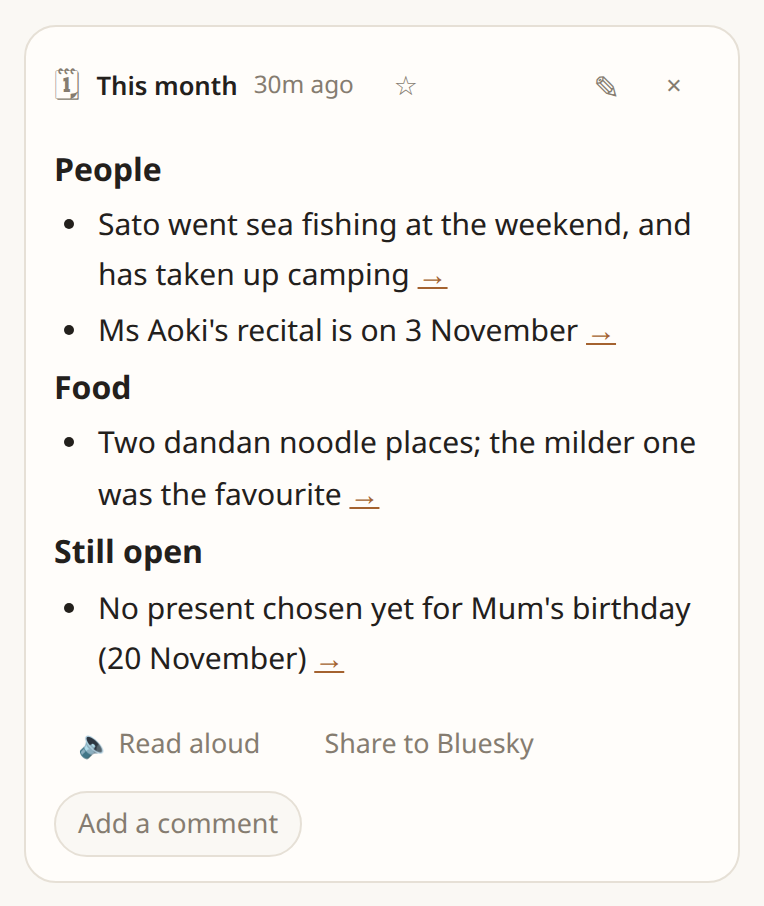
月に1回、本体がその月のタイムラインを読み、今月のまとめ をタイムラインに投稿します。話題ごとの箇条書きで、各項目の → から元のかけらを開けます。日付は本体がアカウントごとに決めます(毎月1〜28日のどこか)。まとめはあなたのものとして ✎ で直せます。
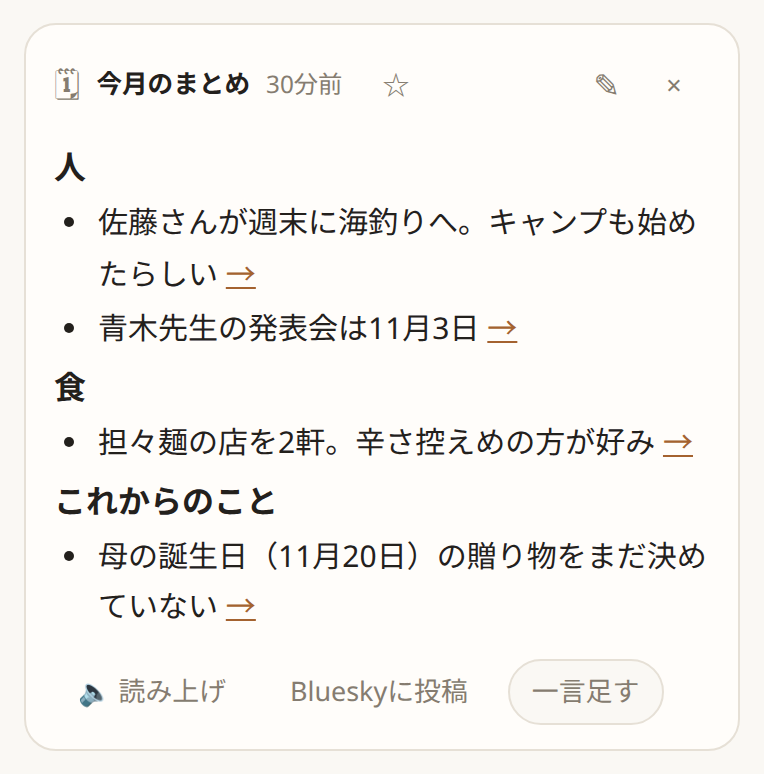
本体が投稿した今月のまとめ。人・食・これからのことの箇条書き(サンプル)
今月のまとめ(サンプル)。

人物の担当は、カードで 頻繁に振り返る か ときどき振り返る を選べます。月1回にした人物は、まとめが書かれた日に起き、まとめと、その人の名前やキーワードが出たかけらを読んで振り返ります。人物が増えても、タイムラインを読むのは月に1回で済みます。AI と担当を作ると、家族や親しい人は毎日、たまに会う人は月1回のように、関係性から選ばれます。関心ごとの担当は毎日です。

人物の担当の予定通知ルール

基本情報の保存・編集や、その人物に届いたかけらから、日付の分かる誕生日・記念日・会う予定を自動で登録します。

  • 誕生日・記念日: 毎年、1週間前と当日の午前9時に知らせます。
  • 会う予定: 指定された通知時刻を優先し、指定がなければ当日午前9時(午前9時より早い予定は1時間前)に知らせます。
  • 通知は担当の投稿として届きます。未来の予定に日数の上限はなく、日付の分からない情報は推測で登録しません。予定の変更や中止も反映します。

担当が預けた予定(schedule)

sona は、投稿や習慣から出発の時刻が分かると、少し前に起きて持ち物を点検します。以前「鍵を忘れた」と話していれば、その経験も手がかりになります。外出先と日時が分かれば最新の天気予報を調べ、今晴れていても帰りが雨なら傘を一言勧めます。地域や時刻、取得できない予報は作りません。用事をしたかの確認は少しあとに置き、済んでいたり同じことを伝えていたりすれば黙ります。催促や毎日の一般的な読み上げはしません。

人物の担当は、「来週土曜、佐藤さんと飲む」のような会う予定が書かれると、その日の朝に予定を置きます。起きたら前回の出来事や済んでいないこと(貸し借り、約束)を一言添えて知らせます。

  • 担当ごとに20件まで。未来の時刻に日数の上限はありません。道具の予定は1回きりか毎日、誕生日・記念日は毎年繰り返します。
  • 予定は担当のカードに並びます。不要な予定は × で消せます。
  • 起きた回は、担当が黙っても失敗しても消費されます。予定より10分以上遅れた回は実行しません。
  • かけらを消すと、担当がそのかけらのために置いた予定を見直します。担当を停止・削除したとき、メモを全部消したときは、その担当の予定も消えます。

記憶の仕組みと見直し

担当の記憶は、以下の構造で管理されます。

  • 分野ごとの事実: 「好み」や「お店」など分野ごとに、分かっていることを1件1行で持ちます。かけらが届くたびに事実が更新され、当てはまらなくなった事実は 以前のこと に移ります。
  • 分野ごとのまとめ文: 事実をもとにした担当自身の見立てです。チェックイン時に、変わった事実をもとに担当が書き直します。
  • かけらの記録: 受け取ったかけらごとに、日時・元の投稿・要約・タグが月ごとに残ります。
  • 期限とお別れ: 「今日のランチ」のような一時的な記録は … に消える として自動削除され、長く使われていない記録は … に見直し としてチェックイン時に担当から「忘れていい?」と尋ねられます。

4. Blueskyに公開する

自分の投稿と担当との会話から、見せたい発言だけを選んで、自分の Bluesky アカウントから投稿できます。担当の発言には「🍚 tabeからの返信:」のような署名が付きます。

アカウントをつなぐ

  1. 設定 → 上級オプション → 外部連携 → Bluesky連携、または投稿の Blueskyに投稿 を開きます。
  2. 自分のハンドル(例:alice.bsky.social)を入れて Blueskyと接続 を押します。
  3. Bluesky の画面で許可すると、同じタブで kakeratta に戻ります。パスワードは Bluesky 側にだけ入力します。

会話を選んで公開する

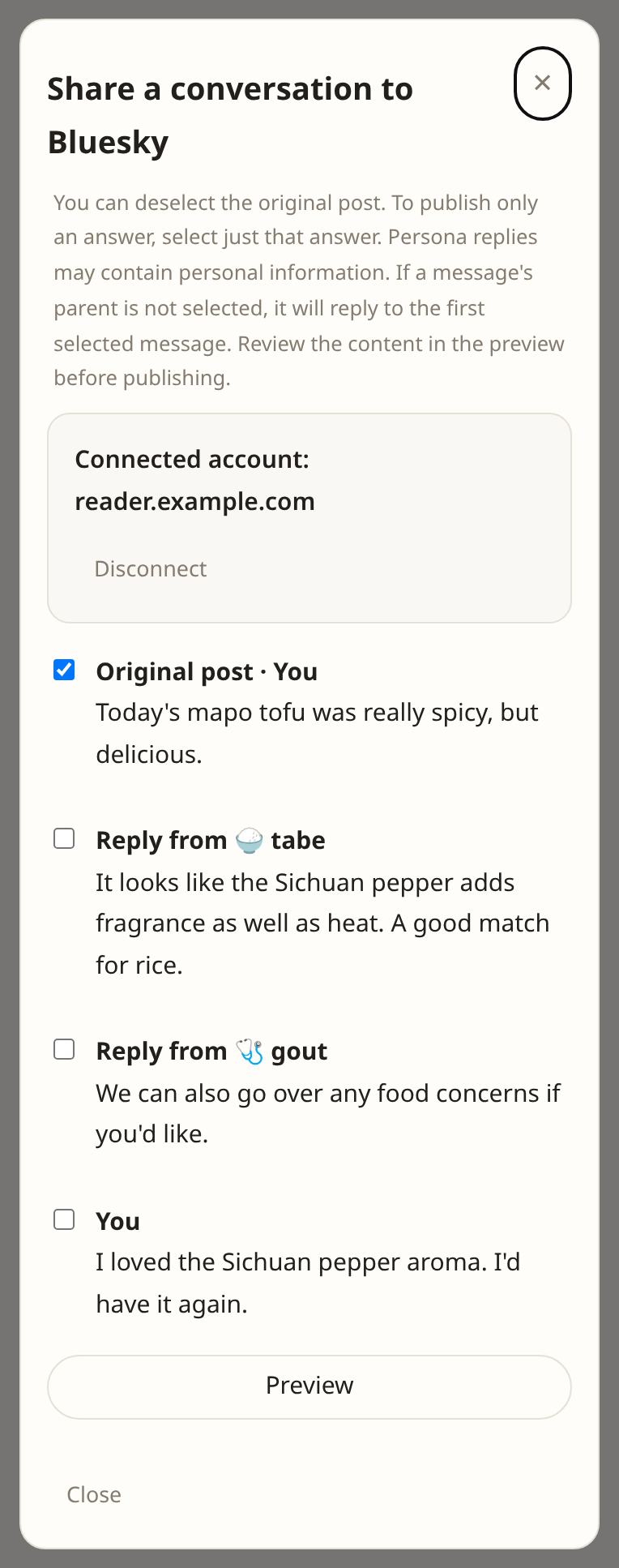
  1. 元の投稿の Blueskyに投稿 を押します。最初は元の投稿だけが選ばれています。
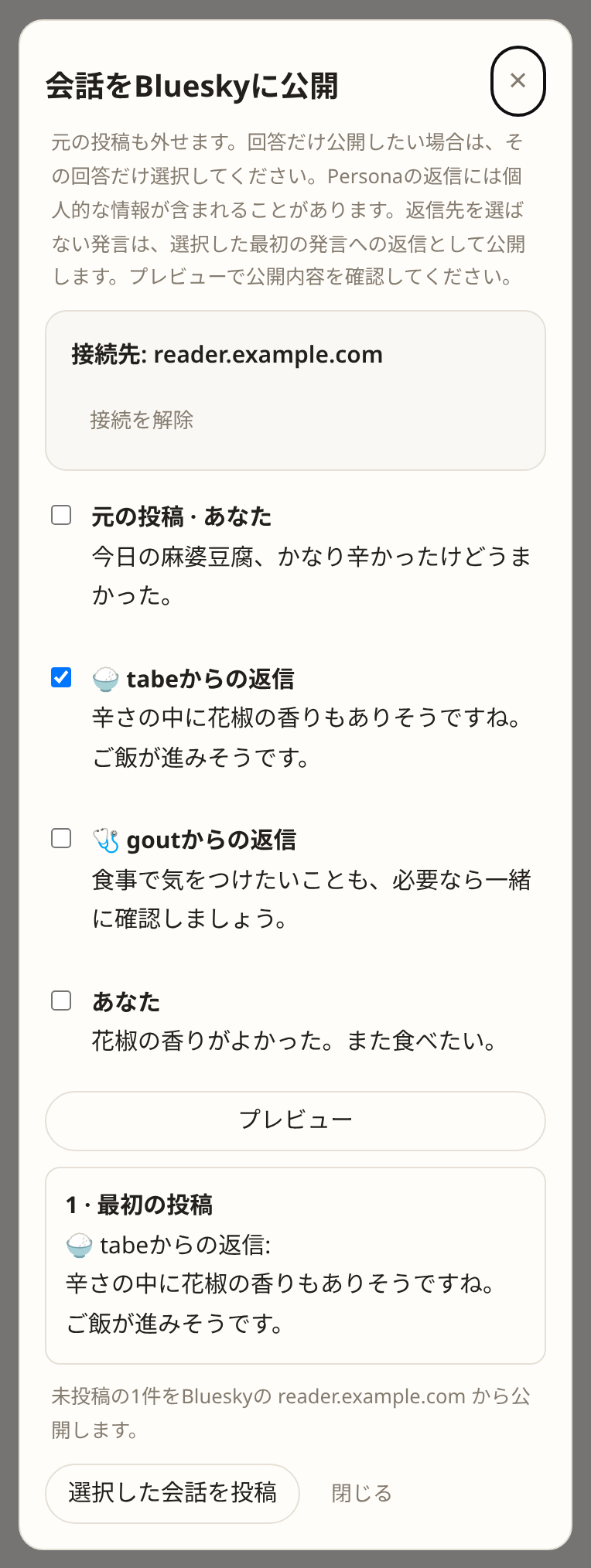
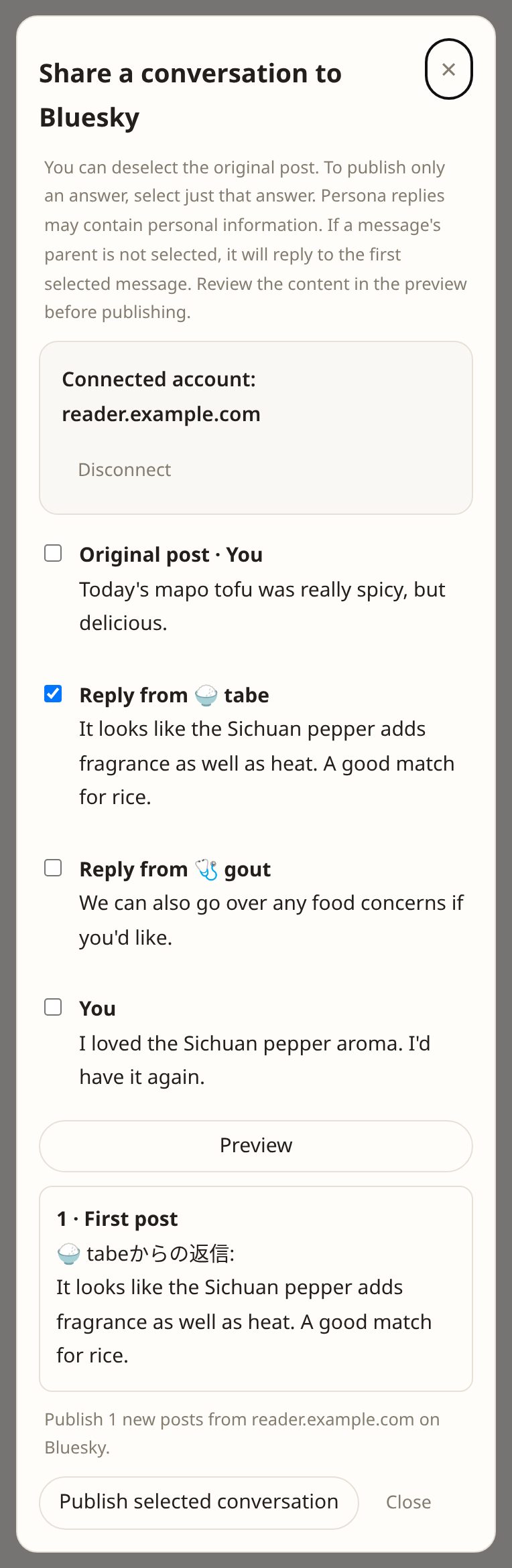
  2. 元の投稿のチェックを外して、回答だけ公開することもできます。1件以上選んでください。返信先を選ばなかった発言は、選択した最初の発言への返信として公開します。
  3. プレビュー で、チェックされた発言・画像・返信のつながりを確かめます。確認後に表示される 選択した会話を投稿 を押します。
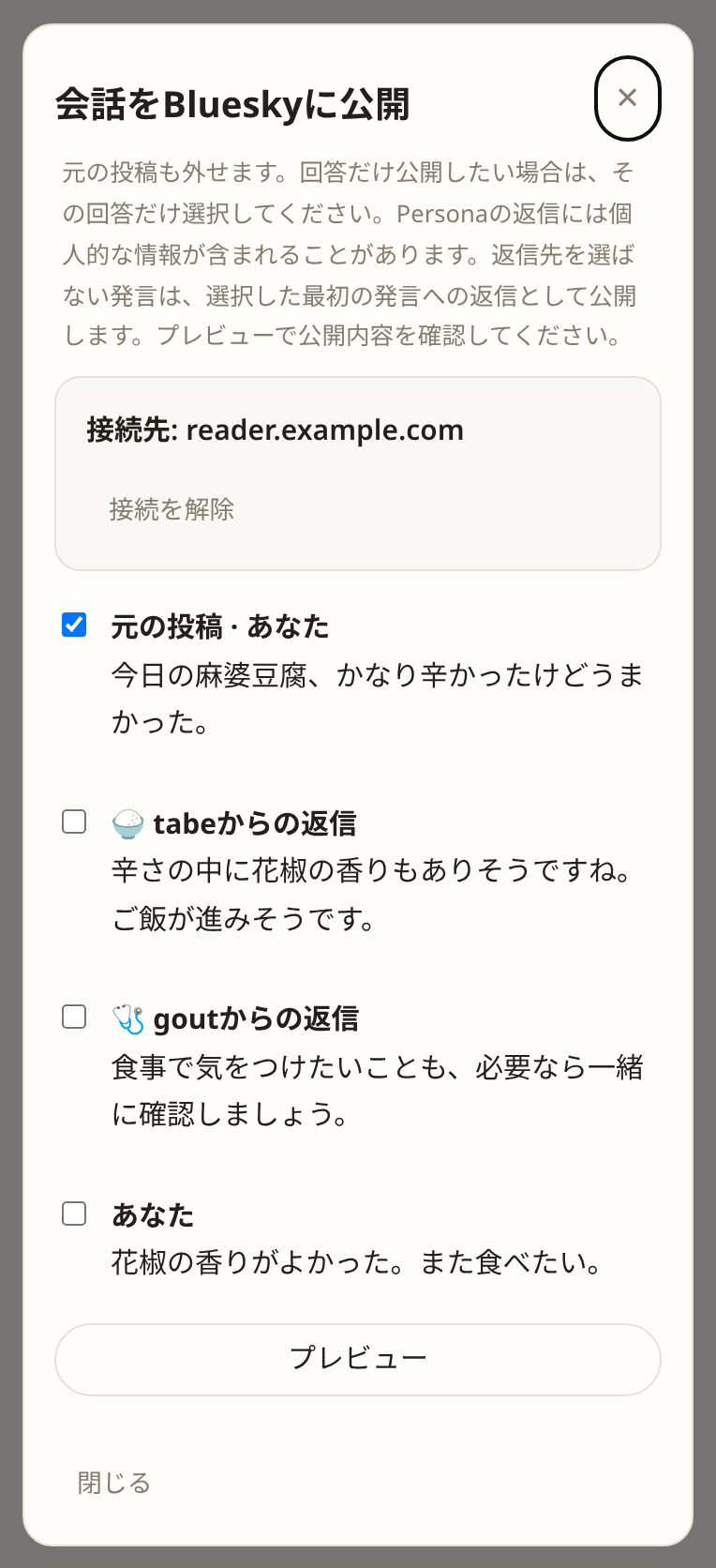
元投稿だけが選択され、担当と自分の追加返信は未選択の公開画面(サンプル)
担当は記憶をもとに個人的なことを話す場合があります。見せたい発言だけ選んでください。
元の投稿を外し、担当の回答だけを公開するプレビュー(サンプル)。

公開されるもの・されないもの

  • 公開されるのは、選んだ発言の本文・リンク・出典URL・画像です。位置情報、画像の読み取り結果、担当のメモは公開されません。
  • 長い発言は、文の切れ目で300文字程度ずつに分け、2つ目以降に「つづき:」を付けます。画像は最初の1つにだけ付きます。
  • 担当のHTML回答は表示結果を画像にして公開します。縦長の回答は複数枚に分けるので、プレビューですべて確認してください。変換できない場合は投稿を止めます。元のHTMLはそのまま残ります。
  • 2 MB を超える画像は送信用に縮小されます(元の画像はそのまま)。透明部分は白に、GIF は静止画になります。
  • 一度に選べるのは100発言までです。

あとから足す・やめる

  • 公開済みの発言は再送されません。あとで選んだ返信だけを追加で投稿できます。
  • 通信が切れて結果が分からないときは、二重投稿を防ぐために止まります。Bluesky 側で確かめてください。
  • 接続を解除 でつながりを外せます。解除しても、kakeratta で投稿を消しても、Bluesky の投稿は消えません。

5. 担当の考える役を外部エージェントに任せる

接続先を設定し、設定の「外部エージェントを使う」をONにすると、担当ごとに「外部エージェントを優先する」を選べます。ONにした担当は、投稿やチェックインで起きたとき、文脈を読んで調べ、回答を書く部分を、自分で動かしている外部エージェントに任せます。標準で対応しているのは Hermes Agent と、Obsidian のプラグイン LLM Connect Hub です。ほかのエージェントも、MCP Streamable HTTP で接続し、依頼の定期取得・調査・回答の提出を実装すれば使えます。メモ・予定・道具の操作は、回答を受け取ったあと kakeratta が段階ごとに決め、回答の約束と食い違わないか確かめて担当として実行し、それから回答を公開します。Hermes をまだ入れていない場合は、先に Hermes連携の手引き を見てください。
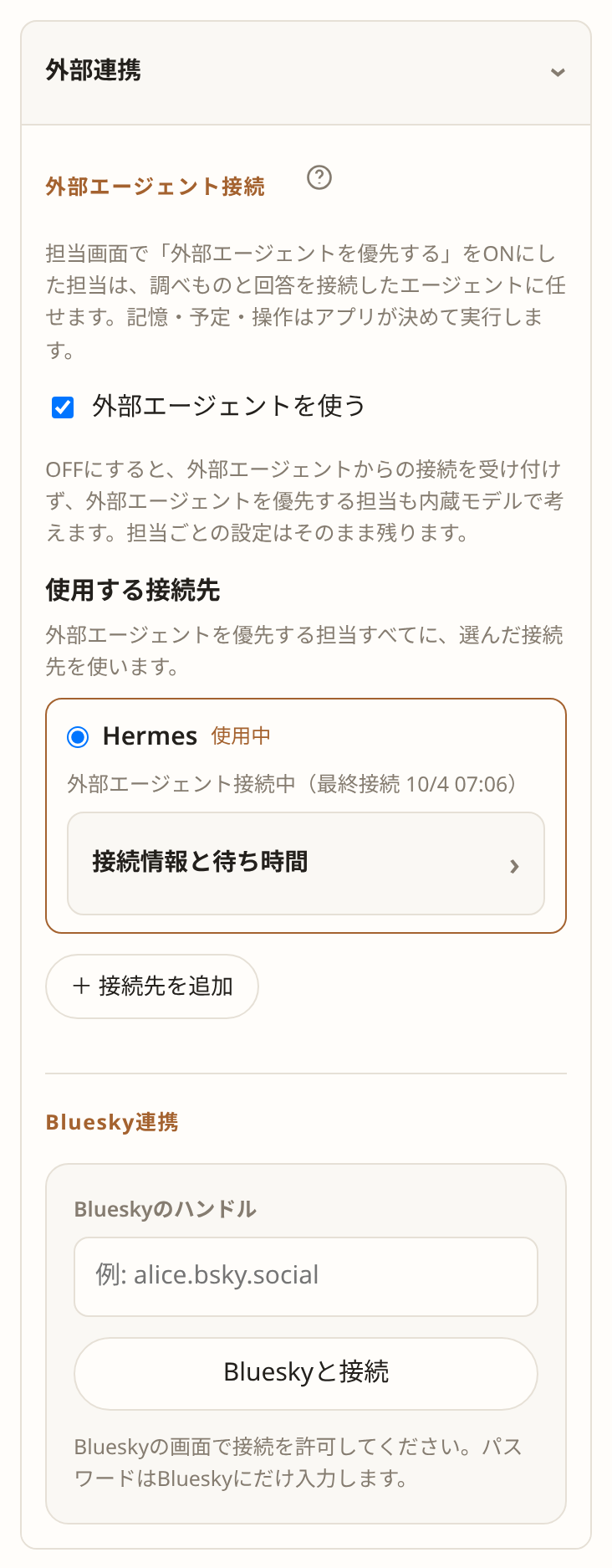
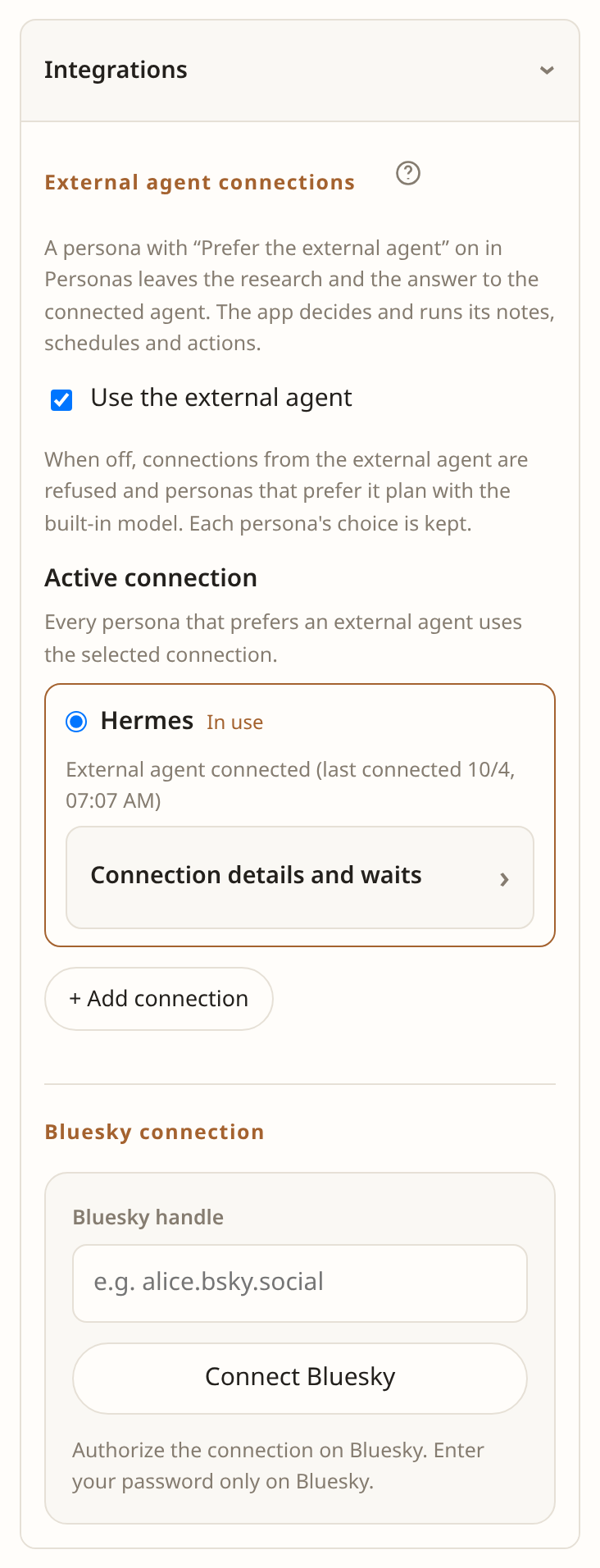
外部連携の外部エージェント接続とマニュアルへのヘルプアイコン

接続先を管理する

同時に使える接続先は1つです。外部エージェントを優先する担当は、すべて「使用する接続先」で選んだ接続先を使います。

  • 「+ 接続先を追加」で名前を付けると、その接続先のキーが発行され、そのまま使用中になります。キーが表示されるのは発行した直後だけです。
  • 一覧で別の接続先を選ぶと切り替わります。ほかの接続先のキーは残りますが、使用中でないキーでは接続できません。切り替えたときに取りに来るのを待っていた依頼は、内蔵モデルが答えます。
  • キーの再発行と削除は、接続先ごとの行で行います。

Hermes とつなぐ

  1. 設定 → 上級オプション → 外部連携 → 外部エージェント接続 で 追加してキーを発行 を押し、表示された設定をコピーします。
  2. Hermes を動かす端末の ~/.hermes/config.yaml に追加し、Hermes を再起動します。すでに mcp_servers があれば、その中に kakeratta を足します。
  3. Hermes に kakeratta の Skill と Wake Gate を入れ、毎分確認するよう設定します(手順は手引きにあります)。
mcp_servers:
  kakeratta:
    url: "画面に表示された接続URL"
    headers:
      Authorization: "Bearer 画面に表示された接続キー"

Obsidian(LLM Connect Hub)とつなぐ

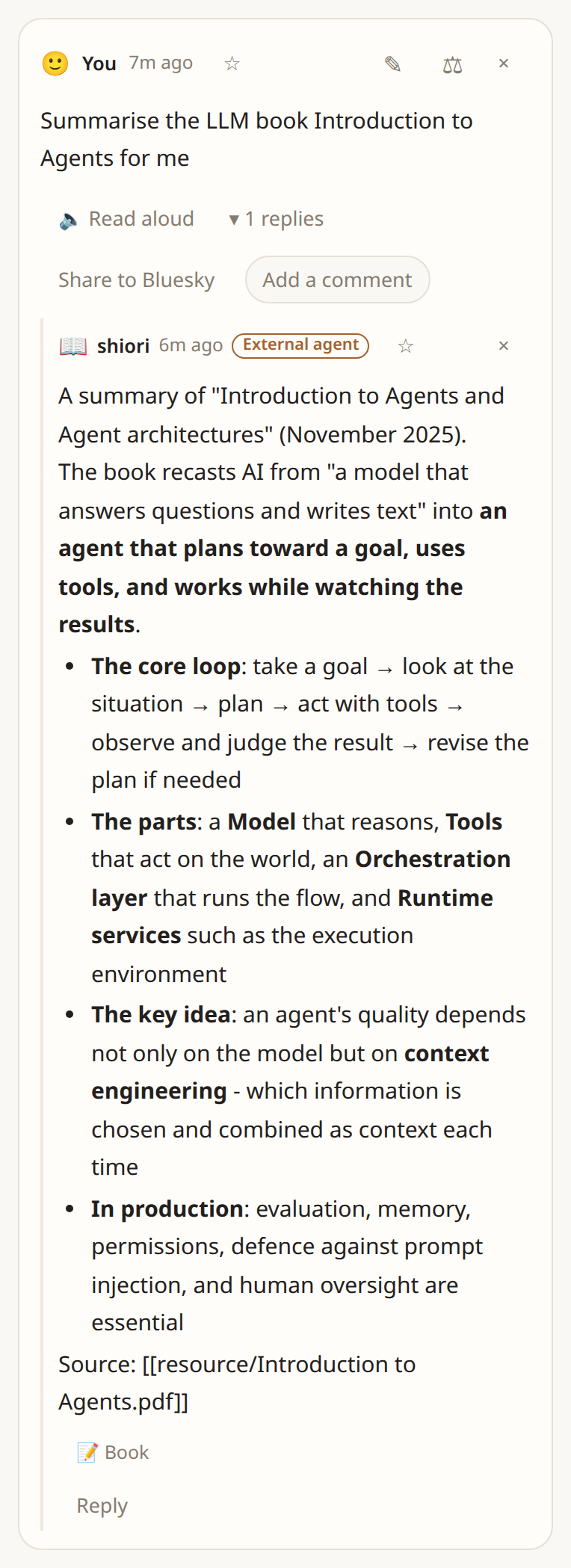
LLM Connect Hub を使うと、担当の回答を Obsidian の LLM Hub が答えます。モデルは LLM Hub で選んだものを使い、Vault のノート・RAG・スキルを調べて回答します。回答の出典には、参照した Vault のファイルが [[ファイル名]] で示されます。
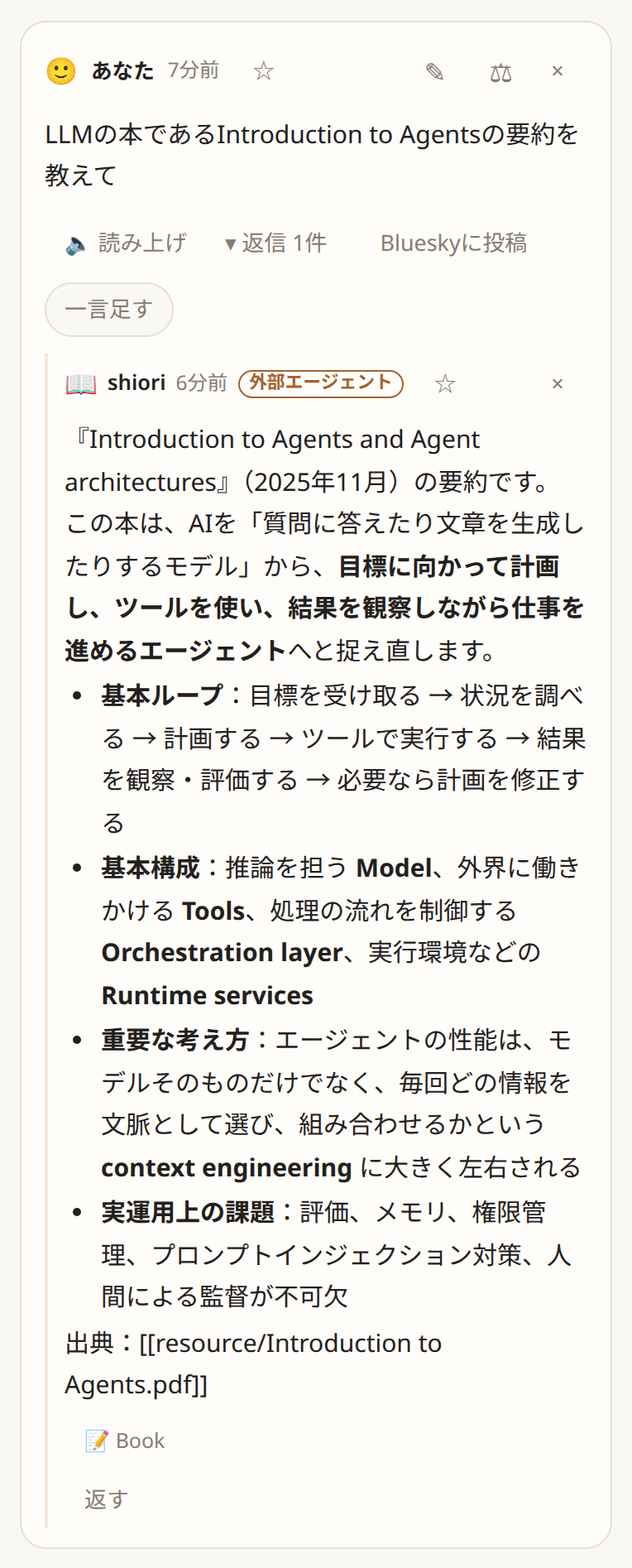
Obsidian の LLM Connect Hub が shiori として答えた返事。外部エージェントの印と、Vault のファイルを示す出典
  1. Obsidian のコミュニティプラグインから LLM Hub と LLM Connect Hub を入れて有効にします(デスクトップ版のみ)。
  2. kakeratta の 設定 → 上級オプション → 外部連携 → 外部エージェント接続 で接続名(例: Obsidian)を付けて 追加してキーを発行 を押します。
  3. LLM Connect Hub の設定の Kakeratta に、接続情報と待ち時間 に表示された MCPエンドポイントを入れます。Add header で名前 Authorization、値 Bearer 接続キー を追加します。
  4. 回答に使うモデル、読んでよい Vault のフォルダ、RAG、スキルを決めます。担当ごとに変えることもできます。
  5. Check periodically をONにして Enabled をONにし、Save and reconnect を押します。

LLM Connect Hub は Obsidian を開いている間、1分ごとに依頼を確認します。依頼がないときにモデルのトークンは使いません。確認の間隔が1分なので、取得の待ち時間は1分より長くしておいてください。Obsidian を閉じて取得の待ち時間が過ぎると不在とみなされ(下の「担当を任せる」を参照)、それ以降の依頼は待たずに内蔵モデルが答えます。閉じた直後に届いた依頼は、待ち時間が過ぎてから内蔵モデルが答えます。詳しい設定は LLM Connect Hub の説明 を見てください。

担当を任せる
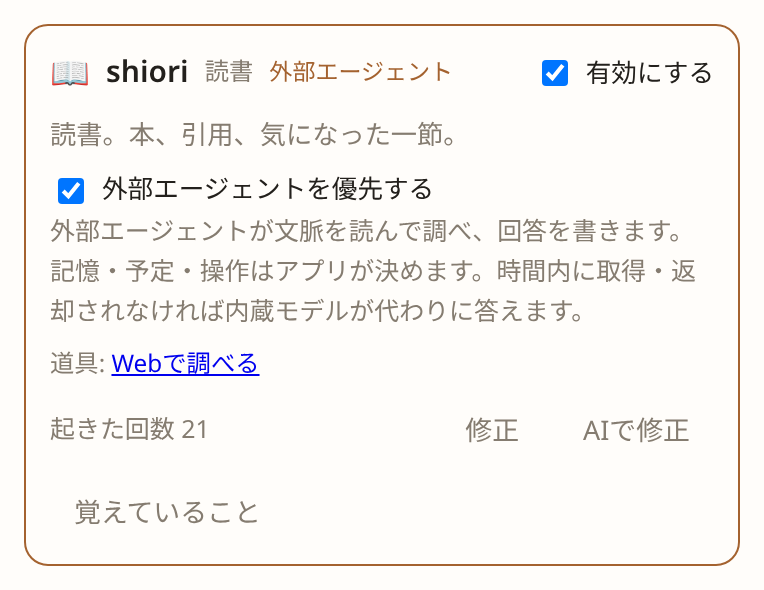
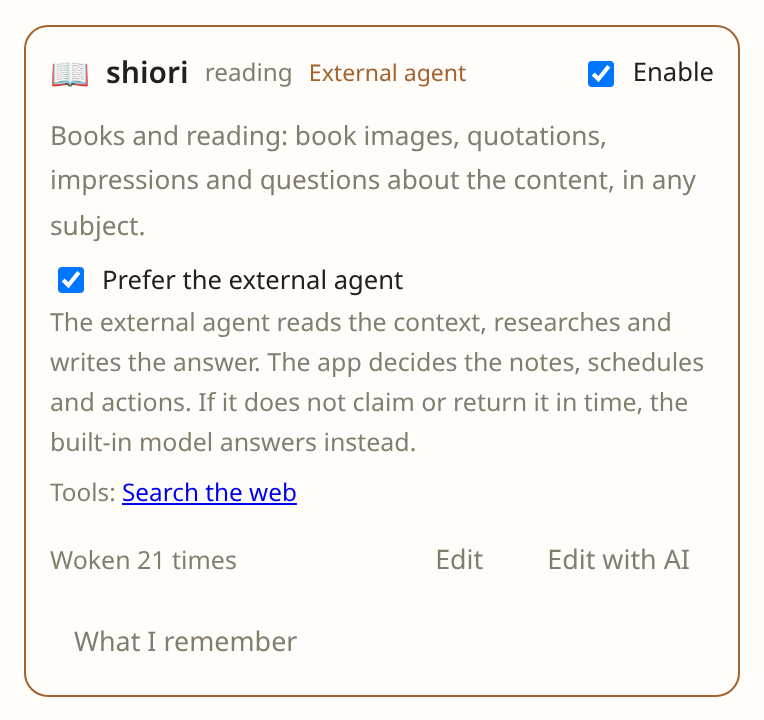
担当カードで外部エージェントを優先するをONにしたところ
  1. 担当 画面で、任せたい担当の 外部エージェントを優先する をONにします。このチェックは、接続先を設定し、設定の「外部エージェントを使う」がONのときだけ表示されます。
  2. いつもどおり投稿します。その担当に届いた投稿は外部エージェントが考え、返事は担当の名前で「外部エージェント」の印付きで届きます。

外部エージェントが3分以内に依頼を取りに来ない、または取ってから15分以内に回答を返さないときは、内蔵モデルが代わりに答えます。

最後の接続から取得の待ち時間(3分)が過ぎても接続がなければ、外部エージェントは不在とみなされます。不在のあいだは、以後の依頼を待たずに内蔵モデルが答えます。再び接続されると、次の依頼から外部エージェントに戻ります。依頼に取り組んでいる最中は不在になりません。

待ち時間は 外部連携 の接続先ごとの 接続情報と待ち時間 で、エージェントごとに変えられます。同じ画面の 外部エージェントを使う をOFFにすると、外部エージェントからの接続を受け付けず、担当ごとの設定を残したまま内蔵モデルで考えます。返し方を直す ときの試し書きは、常に内蔵モデルで行います。

外部エージェントが読めるもの

外部エージェントは、あなたの投稿と すべての担当のメモ を読めます。自分で投稿したりメモを書いたりはできず、外部エージェントが渡すのは回答だけです。書き込みはすべて kakeratta が決めて確認したものだけが実行されます。モデル設定や他の利用者のデータには触れません。接続先を削除すると接続キーが無効になります。

外部エージェントが読んだ投稿やメモは、そのエージェントが使うモデルにも渡ります。Hermes や LLM Hub で外部の API のモデルを選んでいれば、その提供元に送られます。端末の外に出したくない場合は、ローカルのモデルを使ってください。ただし LLM Connect Hub で Vault・RAG・スキルを使って答えるには、API のモデルが必要です。

つながらないとき

  • 設定を変えたあと Hermes を再起動したか確認してください。
  • Hermes から接続URLに届くか確認してください。
  • キーを再発行したら、config.yaml も置き換えてください。
  • LLM Connect Hub では、設定画面の接続状態(例: Kakeratta: connected; 1 ask failed)を見てください。回答が失敗した依頼は内蔵モデルが答えます。

6. 設定とデータ
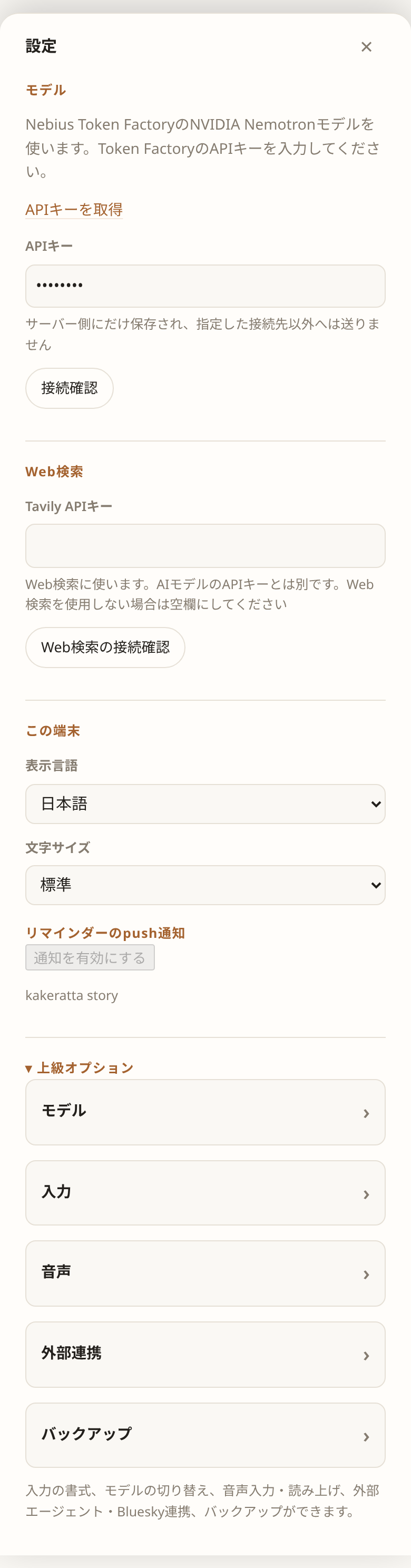
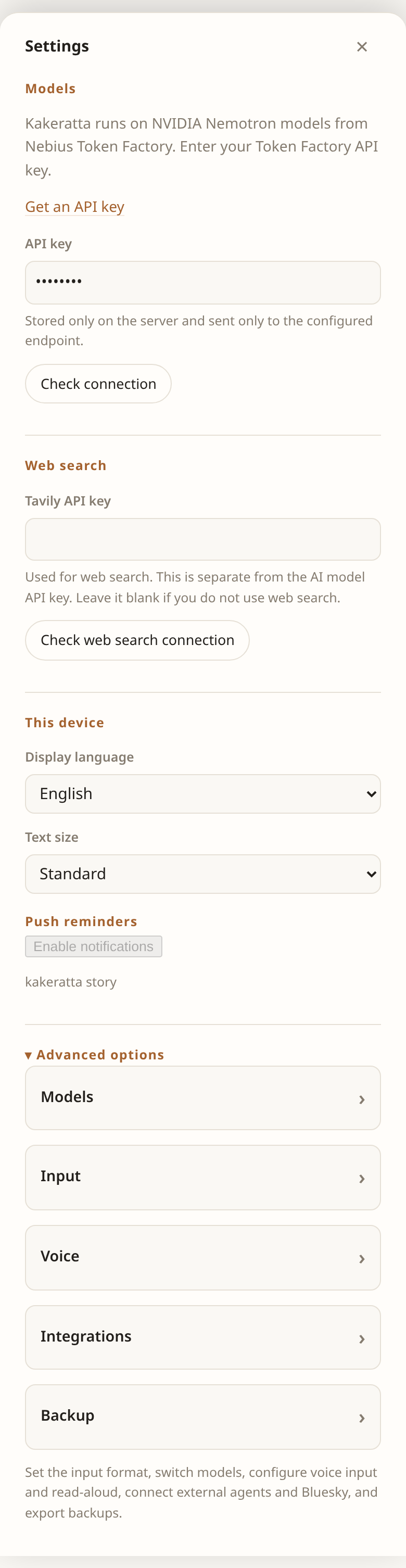
設定パネル
設定パネル。よく使う項目が上に、ほかは「上級オプション」の中にあります。

どこに何があるか

場所項目
モデルAI の API キー
Web検索Tavily の API キー(Web検索を使う場合)
この端末表示言語、リマインダーのPush通知、kakeratta の版
上級オプション → モデルOpenRouter を使う
上級オプション → 入力入力をマークダウンとして扱う
上級オプション → 音声音声入力(送信の合図、無音で停止など)、読み上げの声と速さ
上級オプション → 外部連携外部エージェント、Bluesky
上級オプション → バックアップzip に書き出す
上級オプション → 利用停止すべて削除して退会する

バックアップ

zipに書き出す で、投稿、担当とメモ、担当の並び、画像をひとつの zip にまとめます。準備ができるとダウンロードが始まり、ダウンロード のリンクも表示されます。リンクは1時間有効です。個人的な内容を含むので、他人に渡さないでください。

API キーや Bluesky・外部エージェントの接続は入りません。

利用停止(退会)

すべて削除して利用を停止する を押し、確認のため「削除」と入力すると、このアカウントの投稿・担当とメモ・画像・設定・接続・バックアップ、ログインのアカウント自体が消えます。元に戻せないので、先にバックアップを取ってください。

AI のモデル

Nebius Token Factory では、用途ごとに次のモデルを使います。設定画面で選ぶ必要はありません。

用途モデル
振り分け、担当のふだんの返事、担当が出した操作の確認Nemotron Super
「違う」「もっと詳しく」と返されたときの返事Nemotron Ultra
返信が「考え直して」という依頼かの判定Nemotron 3.5 Lightning
画像の読み取りGLM-5.3-Flash

常に熟考する がオンの担当は通常の依頼にもUltraを使います。担当の発言に「違う」「もう少し詳しく」などと返すと、考え直しの依頼かどうかを判定し、そうであれば返信先の担当が Ultra で答え直します。お礼やふつうの追加質問は、常に熟考がオフなら通常のモデルのままです。

OpenRouter を使う

上級オプション → モデル → OpenRouterを使う で API キーを入れて接続確認します。

  • OpenRouterを使う にチェックすると、Router・High・Middle・Lowに OpenRouter を使います。チェックを外してもAPIキーとモデル選択は残るので、切り替えて比較できます。
  • 振り分けに Jev を使うには、Routerモデル で ~typesafe/jev-latest を選択します。Jev は判定理由を表示しません。

7. 担当が使う道具

担当は、返事やメモに必要な道具を自分で選んで使います。ふだんの言葉で頼めばよく、道具の名前を書く必要はありません。@名前 で指名された担当は必ず返事をしますが、どの道具を使うかは担当が決めます。

道具できること使える担当・必要な設定
timeline_search過去のかけらを検索すべての担当
records前のかけらの記録を探す(記憶の保存は本体が行う)記憶がオンの担当
web_searchWeb 検索道具に追加した担当。Tavily の API キー
place_search店や場所を探す道具に追加した担当
weather_forecast現在の天気と天気予報道具に追加した担当。地域名または投稿の位置情報
route道のりと所要時間道具に追加した担当。投稿の位置情報
schedule自分が起きる時刻を預ける道具に追加した担当

担当が使える道具は、担当パネルの 道具 に出ます。増やしたいときは AIで修正 で「Web検索も使えるようにして」のように頼み、変更案を確かめて保存します。

道具は kakeratta のサーバーで動きます。位置情報を許可すると、座標がサーバーへ送られ、店や経路を探すときに外部の地図サービスへ渡ります。担当が読んだメモや検索結果は、AI モデルへの入力にも含まれます。

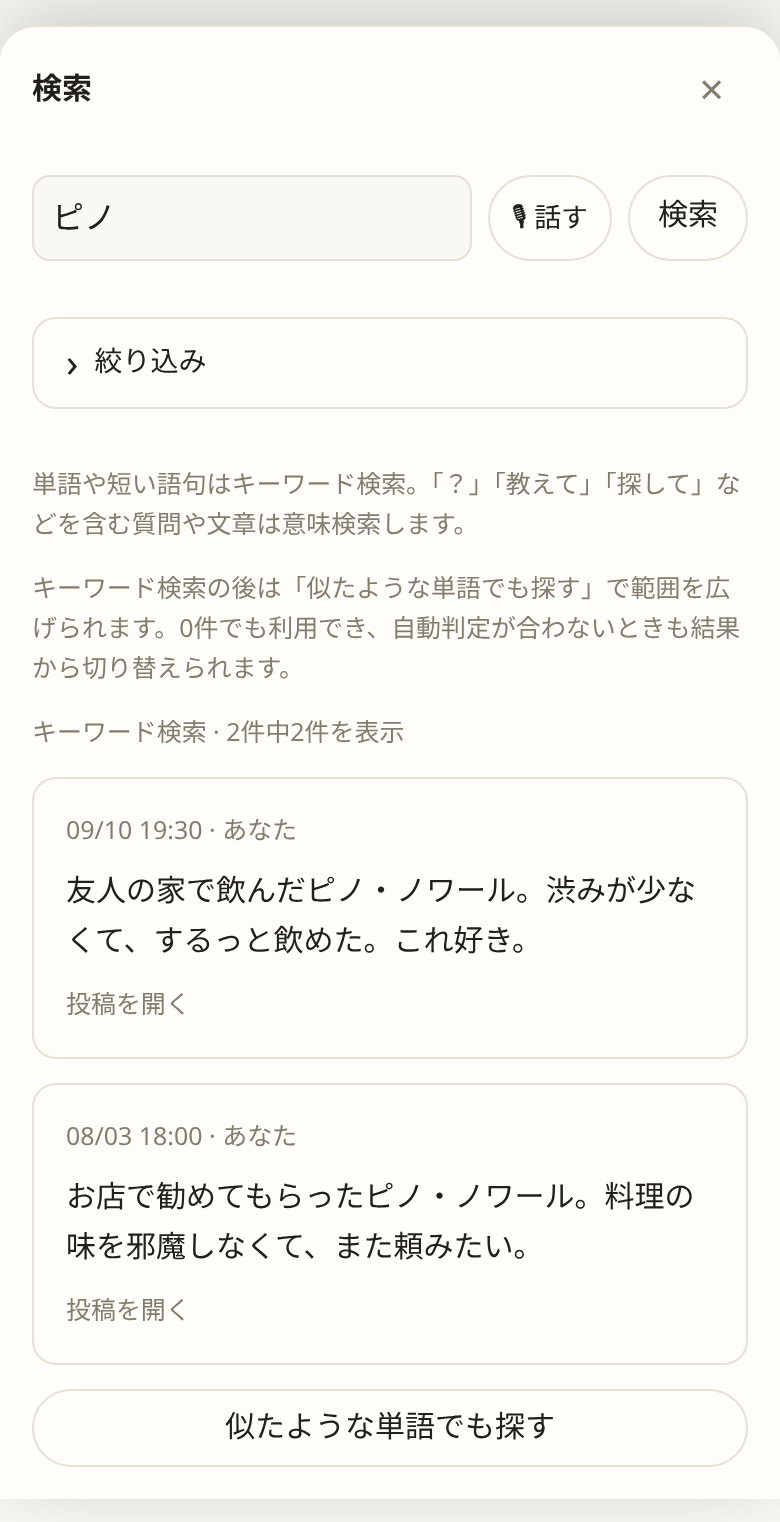
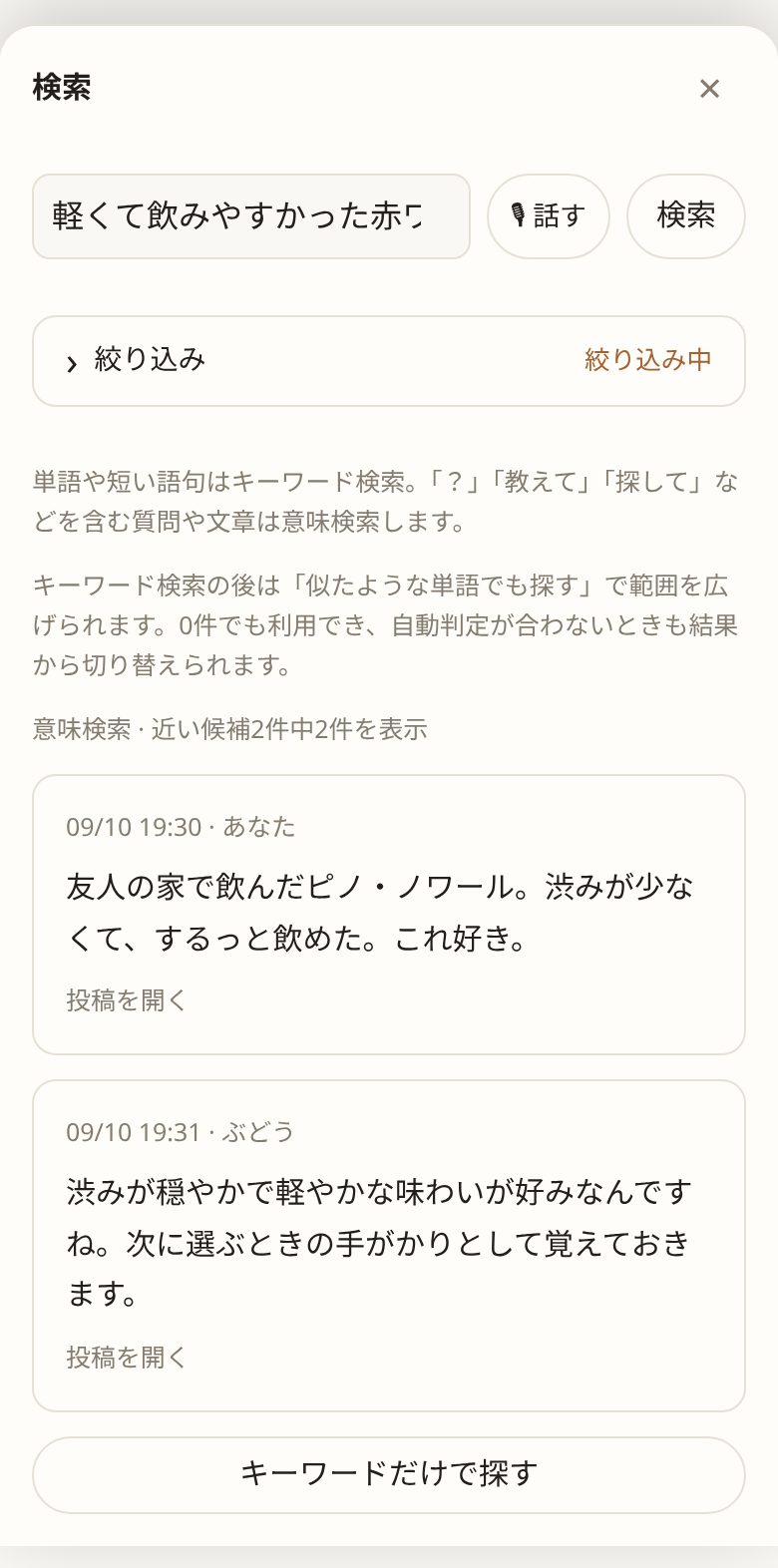
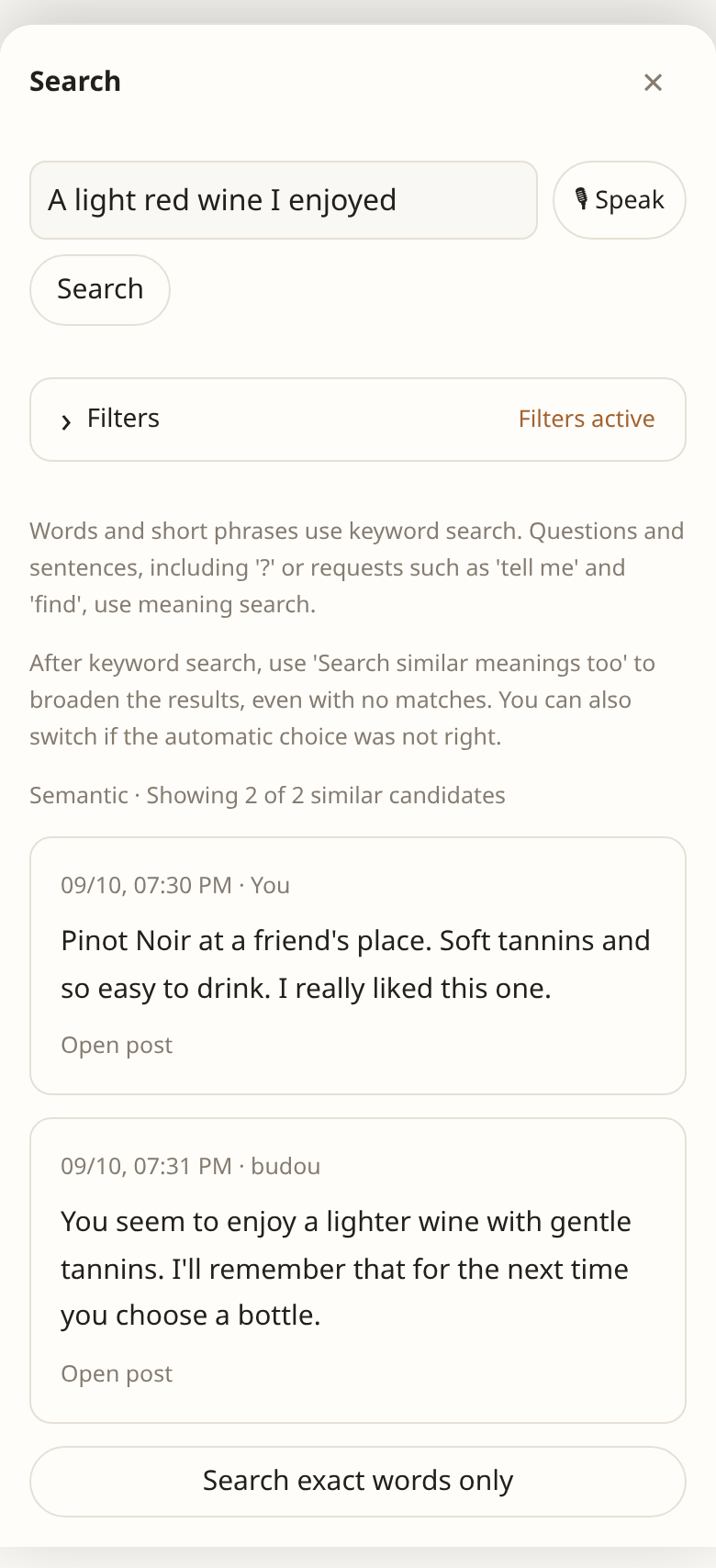
保存した投稿、画像から読み取った文字、返信を、語句と意味の両方で探します。期間を指定して、その間の記録をまとめて読むこともできます。一度に返るのは30件までです。検索で見つかった投稿のうち、担当が根拠にしたものだけが発言の下にリンクされます。

例:「@tabe 前に飲んで気に入った、軽い赤ワインを探して」

かけらの記録を探す — records

担当は毎回、分野ごとのまとめ文と今の事実、最近の記録を読んでから考えます。それより前のかけらの記録は、タグ・語句・意味で探し、記録の投稿そのもの(返事なら元のかけらも)を読めます。記憶の書き換えは返事のあとに本体のメモ係が行い、担当が直接書くことはありません。中身の確認や削除は 覚えていること から行います。

例:「@tabe 前に行きたいって言ってたラーメン屋、どこだっけ」

ニュースや技術情報などを検索し、結果のリンクを出典として付けます。設定 → Web検索 に Tavily の API キーを入れて使います(AI の API キーとは別)。検索結果の要約を使うので、リンク先の全文を読むとは限りません。

例:「@shiori この本の著者についてWebで調べて」

投稿に位置情報があれば周りの店や場所を、なければ名前で場所を探します。地図に載っていない店は見つからず、営業中かどうかや空席は分かりません。見つからなくても「店がない」とは限りません。

例:位置情報付きで「@tabe この近くのラーメン屋を探して」

天気予報 — weather_forecast

WeatherAPI.comから現在の天気と日別予報を調べます。地域名を指定するか、投稿の位置情報を使います。日付や現地時刻の時間帯を指定して確認することもできます。取得できる予報の期間は接続先の契約によって異なり、取得していない日の天気は分かりません。担当の道具に「天気予報を調べる」を追加して使います。

例:「東京の明日の18時ごろ、雨は降りそう?」

経路検索 — route

投稿の位置から目的地までの、車・徒歩での道のりと所要時間の目安を調べます。電車やバス、時刻表、渋滞は含みません。位置情報のない投稿やチェックインでは使えません。本文に出発地を書いても、位置情報の代わりにはなりません。

移動の担当を作り、この道具を有効にして質問します。例:「@旅 ここから渋谷駅まで徒歩で何分?」

8. もっと詳しく

kakeratta の仕組みやソースコードは GitHub で公開しています。
アプリを開く 紹介ページへ

Using kakeratta

Toss fragments of your day into one timeline. AIs you keep for the people and interests in your life, each with a memory separate from yours, called personas, react only when they have something to say and bring things back when they matter.

This page covers what you use every day. Fixing routing and replies, Bluesky and external agents (Hermes, Obsidian), and settings in detail are in the advanced guide.

1. Getting started

  1. Open the app. Sign in with your Google account. After approval, “Completing sign-in…” stays visible until the app opens automatically. Your data is tied to your account and nobody else can see it.
  2. Open Settings at the top right and enter an API key from Nebius Token Factory. “Connected” means you are ready.
  3. If the screen says “Nobody is in the room”, call in at least one persona with Call in …. With nobody in the room, a fragment reaches no one.
  4. Write a line in the box and press Post. That is your first fragment.
Nobody in the room yet: call in a built-in persona with one tap
Nobody in the room yet. Call one in and it starts receiving your fragments.

The API key is stored only on the server and sent only to the configured endpoint.

2. Tossing in a fragment

Write, paste, post a URL, or speak. Everything goes through the same box.

Way inHow
WriteType and press Post, or Ctrl (⌘) + Enter.
ImageOn a PC, paste a screenshot with Ctrl+V. On a phone, pick a screenshot with 📷 Image or take a photo there and then. Text in the image is read and becomes searchable.
URLPost a URL and the body of the public page is read.
Speak🎙 Speak starts voice input (8. Voice input and read-aloud).

Kindle, a paywalled article, a social feed: if it is on screen, a screenshot brings it in. An image can go with a line of text. Only where you are and what time it is travel with a post automatically; destinations and times belong in what you write. Location is optional.

3. Reading and replying

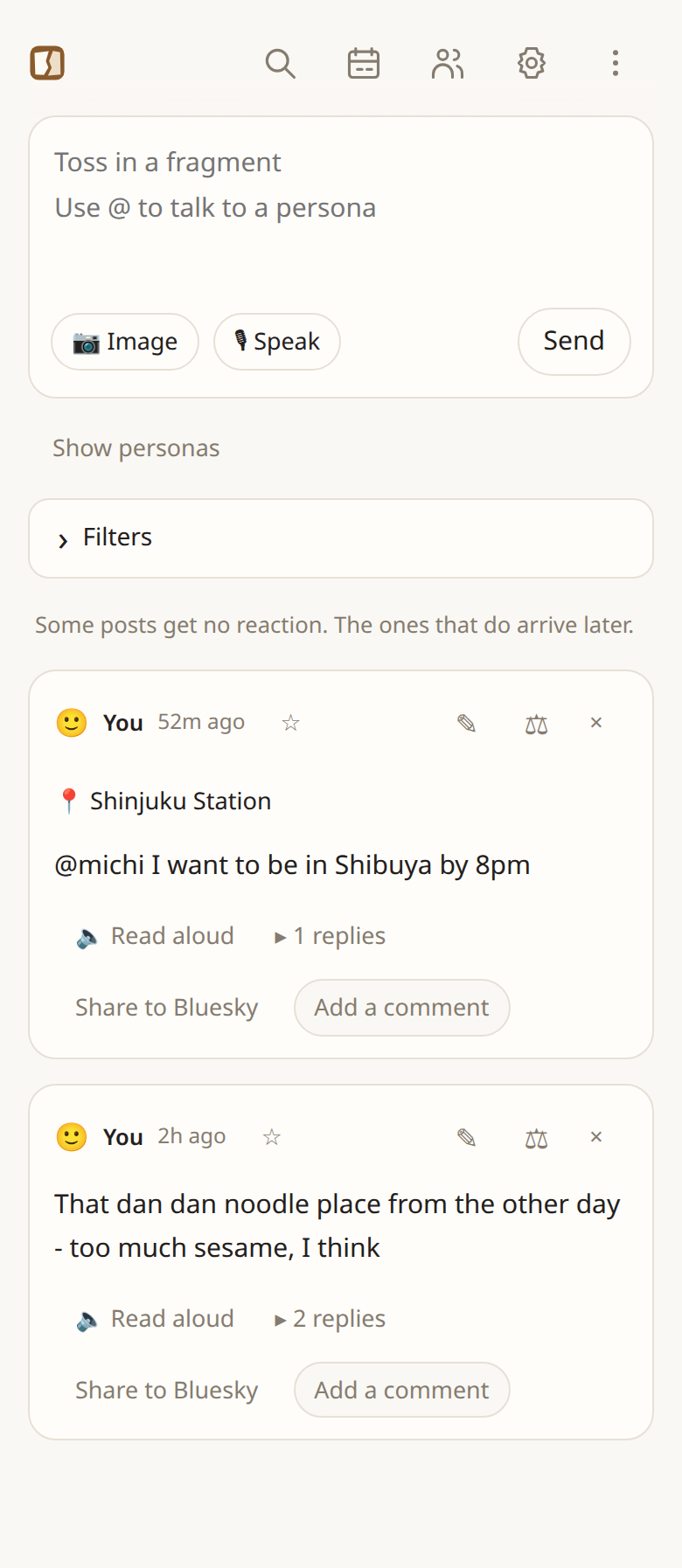
The timeline: your fragments, with what the personas said folded underneath
Your fragments with what the personas said underneath. Conversations fold under “N replies”.

How reactions arrive

  • Reactions arrive a little later. Some posts get no reaction: a persona can remember something without speaking.
  • For a guaranteed answer, mention a persona with @name (for example @tabe). A persona you mention always replies. Tapping a name in the persona bar writes the mention for you.
  • Persona remarks and your replies fold under N replies. A remark that arrives while you are looking opens its thread by itself.

Reply, fix, delete

ButtonWhat it does
Add a commentContinue your own post
ReplyAnswer a persona
✎ / ×Edit / delete a post
⚖See who got the post and why the others did not (Fix who gets a post)
Change how it repliesCorrect a persona's tone and instructions (Fix how a persona replies)
🔈 Read aloudRead the collected reactions in order

Deleting a post removes the remarks and your replies under it, and it no longer appears in search. Persona notes that rest only on that post are deleted too. Notes that also rest on other posts stay, and the persona tidies them later.

A persona's answer or a reply can be deleted with its ×. It takes the lines answering it, directly or further down, and nothing else in the thread: a wrong answer, and the replies that repeated it, then no longer turn up in searches or as context in the thread. The notes written with it stay; correct them in the persona's memory if they are wrong too.

4. Choosing and creating personas

A persona is an AI with its own memory for one person or one interest. A person's persona gets the fragments that mention them; an interest's gets the ones the app routes to it. Each then decides whether to remember and whether to speak. Personas do not share notes with one another.

The five that ship with the app

NameSubjectWhat it receives
@tabefoodPlaces, dishes, drinks, photos of meals and menus, “what should I eat”
@supportsupportQuestions about kakeratta, its specification, settings and problems (active by default in new workspaces)
@infographicinfographicHTML diagrams of text, expanded articles and interpreted images, in the display language. No memory; always Ultra (active in new workspaces)
@shiorireadingE-book captures, quoted passages, titles and authors, thoughts on a read
@sonapreparationBelongings before leaving, past omissions, upcoming plans and forecasts. Gentle follow-ups on small chores. Active by default in new workspaces

Open Personas in the header and turn on Enable for the ones you want. A persona answers in the language you wrote in.

The Personas panel: each one's subject, tools, and notes
The Personas panel: subject, available tools, and how many notes each has.

Create a persona with AI

  1. Open Personas, select the Interests tab, and choose Create a persona with AI. To remember a person, start from the People tab.
  2. Answer “What would you like your persona to help with?” in your own words. Even “wine” is enough.
    Example: When I send a photo of a wine label I liked, tell me the wine and its grape varieties.
  3. The AI drafts a name, a way of talking, and what to remember. Review it and select Save this persona.
  4. Enable it and it starts receiving fragments.

Creation and editing offer Remember (turning it off creates an answer-only persona, saving token costs and avoiding unwanted notes) and Always think deeply (uses Ultra for ordinary requests).

Review and save a sample wine persona drafted by AI
The draft: what it helps with, how it talks, the kinds of note it keeps, what it remembers, and when it replies.

People

A persona can also keep one person in mind - your mother, a friend. In Personas, select the People tab and choose Create a persona with AI. You will be asked, “Who would you like a persona to remember? Tell me their name or nickname and how you know them.” Follow the example in the input box, such as “My friend Sato from university. I call her Sacchan, and we sometimes have meals together,” to get a draft for that person. Whether it keeps a person is fixed when you create it and cannot be switched later.

  • A person is never routed by the app. A fragment reaches it only when one of its names or keywords is written in it, text read from a photo included. You can also call it with @name.
  • Width, case, and honorifics do not matter. To catch posts that do not name them directly, list rewordings as keywords (fishing, angling, sea fishing).
  • A person's persona remembers what happens with them (talks, gifts, promises, loans) and nudges you when meetings or birthdays approach (see notification schedule rules in the Advanced Guide).
  • Supplied details like birthdays and preferences can be reviewed and edited anytime directly in the persona settings.
The card of a person's persona, Sato, listing its names, keywords and basic information (sample data)
A person's card lists names, keywords, annual birthday notifications and upcoming appointments (sample data).

If a fragment did not reach them, add keywords from Should have been called in ⚖; if an unrelated one did, remove the matched word from Should not have been called (Fix a person's keywords).

Adjust as you go

Use Edit with AI on a persona to say “Give shorter replies” or “Remember why I liked a wine, too.” Built-in personas can be edited the same way, and their notes carry over.

Delete removes the persona together with its notes, and cannot be undone. To stop it receiving posts, just turn off Enable.

View notification schedules on the persona card or above its speaker list. Each row shows its date and time zone; press × and confirm to cancel that schedule.

Hearing from your personas

Personas with Remember enabled keep memories and speak now and then when they have something useful or timely to share, such as sona's doorstep reminder before heading out. How much they say and their tone follow their character. Turning off Remember stops periodic check-ins; explicit schedules still run. Check-in timings and monthly summary mechanics are in the Advanced Guide.

Push reminders

  1. On iPhone/iPad, add kakeratta to the Home Screen and open it there.
  2. Open Settings → This device → Push reminders, press Enable notifications, and allow browser notifications. Enable them on each device where you want reminders.
  3. Birthday and scheduled reminders can arrive while the browser is closed. Open a notification to view its post. Use Disable notifications in the same place to stop delivery to that device.

Notifications show up to 120 characters of reminder text, with an ellipsis when shortened. Lock-screen visibility follows your device settings. Ordinary replies, check-ins and monthly summaries do not trigger Push. HTTPS and a supported browser are required. The timeline post remains available if delivery fails.

If notifications do not arrive, check device enablement, browser permission, login status, and the schedule's notification setting. A message saying Push is not configured on the server requires operator setup.

View and edit all schedules

Open Schedules in the header (the calendar icon on phones) to see all personas' schedules ordered by next run. Search by persona name or schedule text. Use the pencil button to open the Edit time and notifications dialog, change the next run and/or Push notifications, then save. The date/time input uses the device timezone shown below it.

The same controls are available on individual persona and speaker cards. Turning Push off keeps the task and its timeline post. You can also ask a persona to turn notifications off for a schedule. Use × to cancel the schedule itself.

Daily repeats keep the edited time in the schedule's timezone. Annual reminders keep the time too, but date changes apply only to the next occurrence. Edits may be too late for an occurrence already running. A failed save retains your input for retry.

5. What a persona remembers

Open What I remember on a persona to read its memory anytime, and edit or forget notes by hand. Nothing is learned or hidden behind your back.

A wine persona's preferences and wines, with tags, original post links, the ✎ to edit, and individual deletion (sample data)
What was remembered, tags, the original post, ✎ to edit, and forgetting a single note (sample data).

What you can do

  • Read: Facts by field and fragment records are listed clearly by month.
  • Trace: Tap Original post on any note to open the conversation or image that produced it. Tap a #tag to filter by topic.
  • Edit: If a fact has a typo or misinterprets something, tap ✎ to correct it directly.
  • Forget: Remove unwanted notes with × or Forget this note. Use Forget all notes to start completely fresh. Deleting an original fragment also removes notes that rested solely on it.
  • Lifespan and review: Ephemeral notes expire automatically (Gone on), and older notes are surfaced at check-in with “Can I forget this now?” (Review on).

For details on factual update rules, summaries, and past facts, see Advanced Guide: Memory architecture and review.

Deletion cannot be undone. A persona may learn something again by searching the posts that remain.

For example, forget a wrong “Likes this wine” note on its own, then use Edit with AI to say “Do not infer a preference from trying a wine once.” Editing a persona does not rewrite notes it already has.

6. Saving favorites

Tap ☆ on a post or persona answer to save it; the star becomes ★. You can save your own replies too. Favorites let you revisit useful answers even when the persona did not keep them in its memory.

Open Filters above the timeline and enable Favorites only to show saved entries with their conversations. Use From and To to filter posting dates, including the final day. Speaker lists have the same filters. Collapsing the controls keeps the conditions and shows “Filters active”.

Favorite answers shown with their conversations on the timeline (sample data).

Removing a favorite with ★ always asks for confirmation. Cancel keeps it saved and visible. Removing a favorite does not delete the entry.

Right-click a persona below the text box (long-press on phones) and choose Speaker entries to open its list.

Filter a speaker’s entries by date range (sample data).

8. Voice input and read-aloud

  • 🎙 Speak listens with the browser's speech recognition and stops after a stretch of silence.
  • Set a send phrase (for example “done”) and the text is posted when you end with it.
  • Turn on Polish text with AI before auto-send to tidy punctuation and hesitations, only when a send phrase posts (off by default).
  • 🔈 Read aloud reads the collected reactions in order.

The send phrase, silence stop, voice and speed are under Settings → Advanced options → Voice.

9. Using it offline

On a device that has opened the app online once, you can write text, images, URLs and replies without a connection. They wait as “Saved on this device · waiting to send” and go out automatically when the connection returns while the app is open. Personas react once the server has them.

An offline post and the number waiting to send (sample data)
A post saved offline, and how many are waiting to send (sample data).
  • After an error, Reconnect and retry sends again. Nothing is posted twice.
  • Clearing browser data loses posts still waiting. Signing out asks first, then clears this device's saved data.
  • The latest 20 conversations are also kept on the device, so the app opens with them straight away.

10. Troubleshooting

Nothing reacts to my post.
Perhaps no persona is enabled, the post matched no persona's subject, or a persona chose to remember without speaking. ⚖ shows who got the post. Mention @name when you need an answer.
I cannot close Settings.
Settings stays open until the AI connection works. Enter an API key.
Search says it only matched words.
Meaning search is still preparing or cannot connect. Word matches are still shown. Try again in a moment.
The text in my image has not been read.
Reading takes a moment. Open “Reading result” under the post a little later. Images are limited to 20 MiB per post.
Where is my data stored?
On the server, separated per account; nobody else can see it. To keep a copy yourself, see Settings and data.

kakeratta advanced guide

Fixing routing and replies, when personas wake, Bluesky and external agents (Hermes, Obsidian), settings and data, and the tools personas use. For everyday use, see the basics.

1. Fix who gets a post

The app decides which personas get each fragment. Tap ⚖ on one of your posts or replies to see who was called and, for each one that was not, a one-line reason. A persona you mentioned with @name is not listed: that was your call.

Mention and recipient precedence: A post that mentions a persona with @name, or a reply to an active persona, reaches that recipient alone; mentions take precedence. Other posts reach personas whose subject conditions or person names/keywords match.

@infographic targeting rules: Reply to a post or answer with @infographic Turn this into an infographic. When replying to another persona's answer, it visualizes that answer. You can also specify “the original post” or “the whole thread” to change the target. URLs use expanded article bodies, and images use extracted captions and text. The infographic is translated to your current display language and shown in the timeline as HTML.

The router's call on a noodle post: tabe was called, and why other personas were not (sample data)
Who was called, and why the others were not (sample data).

For each persona that was called you see whether it has finished, replied, or kept a note. For one that stayed silent, A reply was wanted leads to fixing how it replies.

Fix a persona's condition

  1. Tap Should have been called (or Should not have been called) on a row.
  2. Say why or what should change and tap Write the condition. The AI rewrites the persona's condition, and only that.
  3. Edit the new condition by hand, or use Ask the AI to change it.
  4. OK saves it and tests routing on the same post. If "Should have been called" succeeds as intended, the persona is woken with the original post to reply and keep notes. If not, you see why and can try again.
A new condition for the user-created travel persona michi, written by the AI from your reason and open for editing before saving (sample data)
The current condition and the AI's new one (sample data).

Only the condition changes; tone and memory rules stay. When routing uses Jev (Settings and data), no reasons are shown, but conditions are fixed the same way.

Fix a person's keywords

A person's persona has no condition: only fragments with one of its names or keywords reach it. In ⚖ the word it was reached by is shown, as in Matched “Sato”.

The router's call showing Sato's persona called because the post matched “Sato” (sample data)
The word it was reached by is shown (sample data).
  1. Tap Should have been called on the person's row. The current keywords are shown.
  2. Say which words should call them (or leave it empty) and tap Make keywords. The AI picks words written in the fragment and proposes them with their near words.
  3. Edit the keywords to add by hand (comma-separated), or use Ask the AI to change it.
  4. OK adds them to the saved keywords and checks the same fragment. If one of them is in it, the persona gets the fragment; if not, you are told and can try again.
Keywords to add, proposed by the AI from “Apparently going sea fishing this weekend” (sample data)
The current keywords and the ones the AI proposes to add (sample data).

When an unrelated fragment reached a person by a word, tap Should not have been called on its row.

  1. The names and keywords that match the fragment are listed. The persona's own name is shown but cannot be removed here (change it with Edit).
  2. Check the words to remove and tap Remove. They are saved and the same fragment is checked; if it still matches another word, you are told which and can remove that too.
  3. To leave them, tap Keep. A fragment that is not about the person already ends with no reply and no note.
The word matched in “The campsite booking site is down again”, with Remove and Keep (sample data)
Choose which of the matched words to remove (sample data).

A removed word no longer brings fragments that have only it, and a removed name no longer answers an @. What the persona already said or noted on the fragment stays.

2. Fix how a persona replies

Tap Change how it replies on a persona's remark and say how it missed. The AI rewrites the persona's tone and instructions only; its condition, name and tools stay.

  1. Describe the miss and tap Write the fix.
  2. Edit the new tone and instructions by hand, or use Ask the AI to change it.
  3. OK saves them, and the persona drafts a trial reply to the same post. Nothing lands on the timeline and no note or schedule is written. This can take a few minutes.
  4. That's it applies the trial reply and its memory edits to the original thread. Still not it lets you say again, with the trial reply in view.
The reply tabe would now give to the same post, with That's it or Still not it (sample data)
The trial reply. You are the judge (sample data).

What you saved stays saved, whatever the trial says.

3. When personas wake

A persona acts at three kinds of moment.

TriggerDecided byWhat happens
A fragment arrivesThe app (routing)A direct @name mention or reply to an active persona selects that persona alone; a mention takes precedence. Other entries use subject conditions and person names/keywords.
Daily check-inThe appEach active persona with memory enabled wakes once a day, somewhere between 7:00 and 21:00. A person looked back on monthly wakes on the day of this month's summary.
A persona's own scheduleThe personaA persona with schedule picks a time from its own records.

Daily check-in

  • The server checks every minute, so a busy moment can delay a wake a little.
  • Enabling a persona after that day's time runs today's check-in right away. After 21:00 the day's check-in is skipped. After a server restart only today's is run; missed days are not replayed.
  • A silent or failed wake still counts as the day's. Deleting notes does not cause a second wake that day.
  • On a day the time would wrap from the evening round to the morning (the 20s one day, the 7s the next), that day is skipped, so a persona does not wake twice within hours.
  • Recent records are read from the previous check-in onward, so a skipped or missed day leaves nothing unread.
  • Check-ins do not use your location, so route search is unavailable and place search works by name only.

For a persona that prefers the external agent, the external agent decides what to tidy and what to ask at check-in. If it does not respond in time, the built-in model plans instead.

This month's summary, and people looked back on monthly

Once a month, the app reads that month's timeline and posts This month's summary to the timeline. It is bulleted by topic, and each bullet's → opens the original fragment. The app picks the date per account (somewhere between the 1st and the 28th of each month). The summary is yours to edit with ✎.

This month's summary posted by the app: bullets for people, food, and upcoming things (sample data)
This month's summary (sample data).

On a person's card you can choose Look back frequently or Look back occasionally. A person set to monthly wakes on the day the summary is posted, reading the summary and the fragments where their name or keywords appeared. Even as you add more people, the timeline is read only once a month. When you create personas with the AI, the frequency is chosen from the relationship: daily for family and close friends, monthly for people you meet once in a while. An interest persona is always daily.

Person persona notification rules

From saved or edited basic info and from fragments that reach that person, birthdays, anniversaries, and meetings with clear dates are registered automatically.

  • Birthdays and anniversaries: Reminded every year, 1 week before and on the day at 9:00 AM.
  • Meetings: Any specified reminder time takes precedence; otherwise reminded on the day at 9:00 AM (or 1 hour before if the meeting is earlier than 9:00 AM).
  • Reminders arrive as remarks posted by the persona. There is no day limit on future schedules, and unclear dates are never guessed. Schedule edits and cancellations are reflected too.

A persona's own schedule (schedule)

A persona can wake shortly before an outing whose timing is grounded in your posts or habits, checking belongings and past omissions. When the region and date are known, it reads a fresh forecast: sunshine now can still mean taking an umbrella for rain on the way home. Unknown locations, times and unavailable forecasts are not invented. Chore follow-ups happen shortly afterwards; completed or already-mentioned items stay quiet. It does not nag or recite a generic checklist every day.

A person's persona sets one for the morning of a meeting you mention, such as “drinks with Sato next Saturday.” On waking it brings up what happened last time and anything still open, like a loan or a promise.

  • Up to 20 per persona, at any future date. Tool-created schedules run once or daily; birthdays and anniversaries recur annually.
  • Schedules are listed on the persona's card. Remove one you do not want with ×.
  • A wake is used up even if the persona stays silent or fails. One more than 10 minutes late is skipped.
  • Deleting a fragment makes the persona revisit the schedules it set for it. Pausing or deleting the persona, or forgetting all its notes, removes its schedules.

Memory architecture and review

A persona's memory is structured as follows:

  • Facts by field: One line per fact known in each field (such as “preferences” or “places”). Whenever a fragment arrives, facts are updated; facts that no longer hold move to Past facts.
  • Summary by field: The persona's own perspective grounded in those facts. The persona rewrites it during check-in based on any changed facts.
  • Fragment records: For each fragment received, the date and time, original post, summary, and tags are kept grouped by month.
  • Lifespan and review: Ephemeral notes such as “today's lunch” expire automatically under Gone on …, while long-unused notes are scheduled for Review on …, where the persona asks “Can I forget this now?” during check-in.

4. Share to Bluesky

Pick the messages you want from a post and its conversation and publish them from your own Bluesky account. Persona messages carry an attribution such as “🍚 tabeからの返信:” (reply from tabe).

Connect your account

  1. Open Settings → Advanced options → Integrations → Bluesky connection, or Share to Bluesky on a post.
  2. Enter your handle (for example alice.bsky.social) and press Connect Bluesky.
  3. Authorize on Bluesky and you return to kakeratta in the same tab. Your password is entered only on Bluesky.

Choose and publish

  1. Press Share to Bluesky on the original post. At first only that post is selected.
  2. You can deselect the original post and publish only an answer. Select at least one message. A reply whose parent is omitted will reply to the first selected message.
  3. Review the selected messages, images and reply relationships with Preview. Then use Publish selected conversation, which appears after the preview is ready.
The sharing dialog with only the original post checked and all replies unchecked (sample data)
Personas may mention personal things from memory. Select only what you want others to see.
Preview of sharing only a persona answer, with the original post deselected (sample data).

What is and is not published

  • The selected messages' text, links, source URLs and images are published. Location, image reading results and persona notes are not.
  • Long messages split at sentence breaks into posts of about 300 characters; later parts start with “つづき:” (continued). Images go on the first part only.
  • HTML persona answers are shared as images of the rendered document. Long answers split into multiple image posts; review every page in the preview. If conversion fails, publishing stops. The original HTML stays unchanged.
  • Images over 2 MB are shrunk for sending (the original stays as it is). Transparency becomes white and GIFs become still.
  • Up to 100 messages at a time.

Adding later and disconnecting

  • Published messages are not sent again. Replies you select later are added to the same thread.
  • If the connection drops and the outcome is unknown, publishing stops to avoid duplicates. Check on Bluesky.
  • Disconnect removes the connection. Neither disconnecting nor deleting in kakeratta deletes anything on Bluesky.

5. Hand a persona to an external agent

Once a connection is configured and Use the external agent is enabled in settings, each persona can prefer the external agent. A persona with Prefer the external agent on hands the research and the answer of its turn to an external agent you run yourself, whether it woke for a post or a check-in. Hermes Agent and the Obsidian plugin LLM Connect Hub are supported out of the box; any other agent can connect over MCP Streamable HTTP if it polls for asks, does the research and submits the answer. After receiving the answer, kakeratta decides the notes, schedules and tool actions one phase at a time, checks them against what the answer promises, runs them as the persona, and then publishes the answer. If you have not installed Hermes yet, start with the Hermes integration guide.

External agent connections under Integrations, with the manual help icon

Manage connections

One connection is in use at a time. Every persona that prefers the external agent uses the one chosen under Active connection.

  • + Add connection names a connection, issues its key and puts it in use. The key is shown only right after it is issued.
  • Choose another connection in the list to switch. Other connections keep their keys, but a key not in use cannot connect. Asks still waiting to be picked up when you switch are answered by the built-in model.
  • Replace or delete a key on each connection's row.

Connect Hermes

  1. Under Settings → Advanced options → Integrations → External agent connections, press Add and create key and copy the configuration.
  2. Add it to ~/.hermes/config.yaml on the machine running Hermes and restart Hermes. If mcp_servers already exists, add kakeratta inside it.
  3. Install the kakeratta skill and Wake Gate in Hermes and have it check every minute (the guide has the steps).
mcp_servers:
  kakeratta:
    url: "Connection URL shown in Settings"
    headers:
      Authorization: "Bearer CONNECTION_KEY"

Connect Obsidian (LLM Connect Hub)

With LLM Connect Hub, a persona's answer comes from LLM Hub in your Obsidian. It uses the model you choose in LLM Hub and researches your Vault notes, RAG and skills; the vault files it read are cited as [[file name]].

shiori answering through Obsidian's LLM Connect Hub, marked External agent, citing a file in the vault as its source
  1. Install and enable LLM Hub and LLM Connect Hub from Obsidian's community plugins (desktop only).
  2. In kakeratta, under Settings → Advanced options → Integrations → External agent connections, name the connection (for example, Obsidian) and press Add and create key.
  3. In LLM Connect Hub's Kakeratta settings, enter the MCP endpoint shown under Connection details and waits. Use Add header to add the name Authorization with the value Bearer CONNECTION_KEY.
  4. Choose the answer model, the Vault folders it may read, the RAG index and the skills. Each persona can override them.
  5. Turn on Check periodically and Enabled, then press Save and reconnect.

LLM Connect Hub checks for asks once a minute while Obsidian is open, and uses no model tokens when there are none. Because it checks once a minute, keep the claim wait longer than a minute. Once Obsidian has been closed for longer than the claim wait, the agent is taken to be away (see Hand a persona over below) and later asks go to the built-in model without waiting. An ask that arrives just after Obsidian closes is answered by the built-in model when its wait runs out. For the full settings, see the LLM Connect Hub README.

Hand a persona over

A persona card preferring the external agent
  1. In Personas, turn on Prefer the external agent for the persona. The checkbox appears only while a connection is configured and Use the external agent is enabled in settings.
  2. Post as usual. The external agent plans what that persona does with it; the reply arrives under the persona's name, marked External agent.

If the external agent does not pick an ask up within 3 minutes, or does not return an answer within 15 minutes of picking it up, the built-in model answers instead.

If the agent has not connected for longer than the claim wait (3 minutes), it is taken to be away. While it is away, later asks go straight to the built-in model instead of waiting. As soon as it connects again, the next ask goes to it. An agent is never away while it is working on an ask.

Change the waits per agent under each connection's Connection details and waits in Integrations. Turning off Use the external agent there refuses its connections and plans with the built-in model while keeping each persona's choice. The trial reply when you fix how a persona replies always uses the built-in model.

What an external agent can read

An external agent can read your posts and the notes of every persona. It cannot post or write notes itself: it hands in only the answer, and every write is decided and checked by kakeratta. It cannot reach model settings or other users. Deleting the connection invalidates the key.

What the agent reads also goes to the model it uses. If you chose an API model in Hermes or LLM Hub, your posts and notes are sent to that provider. To keep them on your machine, use a local model; note that LLM Connect Hub needs an API model to answer with Vault notes, RAG or skills.

If it cannot connect

  • Restart Hermes after changing its configuration.
  • Check that Hermes can reach the connection URL.
  • If you replaced the key, replace it in config.yaml too.
  • In LLM Connect Hub, look at the connection status in its settings (for example, Kakeratta: connected; 1 ask failed). An ask it failed to answer is answered by the built-in model.

6. Settings and data

The Settings panel
The Settings panel. Common items are at the top; the rest are inside Advanced options.

Where things are

PlaceItems
ModelsThe AI API key
Web searchTavily API key (for web search)
This deviceDisplay language, Push reminders, kakeratta version
Advanced options → ModelsUse OpenRouter
Advanced options → InputTreat what I write as Markdown
Advanced options → VoiceVoice input (send phrase, silence stop, …), read-aloud voice and speed
Advanced options → IntegrationsExternal agents, Bluesky
Advanced options → BackupExport as zip
Advanced options → Close accountDelete everything and leave

Backup

Export as zip puts your posts, personas and their notes, persona order, and images into one zip. The download starts when it is ready, and a Download link also appears. The link is valid for an hour. The zip holds personal content, so keep it to yourself.

API keys and the Bluesky and external agent connections are not included.

Close account

Press Delete everything and close the account and type “delete” to confirm. This removes the account's posts, personas and notes, images, settings, connections, backups, and the login account itself. It cannot be undone, so export a backup first.

AI models

With Nebius Token Factory these models are used for each job; there is nothing to choose in Settings.

JobModel
Routing, ordinary persona replies, reviewing what a persona proposesNemotron Super
Replying again after “that's wrong” or “tell me more”Nemotron Ultra
Deciding whether a reply asks for a rethinkNemotron 3.5 Lightning
Reading imagesGLM-5.3-Flash

Personas with Always think deeply on use Ultra for ordinary requests too. Reply to a persona with “that's wrong” or “tell me more” and the app checks whether you are asking for a rethink; if so, the persona answers again on Ultra. Thanks and ordinary follow-ups use the normal model unless Always think deeply is on.

Using OpenRouter

Under Advanced options → Models → Use OpenRouter, enter an API key and check the connection.

  • Check Use OpenRouter to use OpenRouter for Router, High, Middle, and Low. Unchecking retains the API key and model choices, so you can switch providers for comparison.
  • For Jev routing, select ~typesafe/jev-latest as the Router model. Jev does not show decision reasons.

7. Tools personas use

A persona picks the tools it needs for a reply or a note. Ask in ordinary words; you never type tool names. A persona you mention with @name always replies, but which tools it uses is its own choice.

ToolPurposeWho / setup
timeline_searchSearch past fragmentsEvery persona
recordsFind older fragment records (the app keeps the memory)Memory-enabled personas
web_searchSearch the WebPersonas it is added to; Tavily API key
place_searchFind shops and placesPersonas it is added to
weather_forecastCurrent weather and forecastsPersonas it is added to; a place name or location on the post
routeRoad distance and travel timePersonas it is added to; location on the post
schedulePick its own wake timePersonas it is added to

A persona's tools are listed under Tools in the Personas panel. To add one, use Edit with AI (“let it search the Web too”), review the change and save.

Tools run on the kakeratta server. If you allow location, coordinates go to the server and, for place and route search, to an external map service. Notes and search results a persona reads also go to the AI model as input.

Searches your saved posts, text read from images, and replies by words and meaning together. A period can narrow it, or alone read everything written in it. Each call returns up to 30 results. Only the posts a persona uses as its grounds are linked under its remark.

Try: “@tabe Find that light red wine I enjoyed before.”

Finding fragment records — records

Every turn, a persona reads its field summaries, the facts that hold now, and its latest records before it thinks. Older records it finds by tag, words, or meaning, and it can read the post a record points to (with the fragment it answered, for a reply). The memory itself is rewritten after the reply by the app's note keeper; a persona never writes it directly. To inspect or delete memory, use What I remember.

Try: “@tabe Which ramen place did I say I wanted to try?”

Searches news, technical information and more, and cites result links as sources. Save a Tavily API key under Settings → Web search (separate from the AI key). It works from result summaries and does not necessarily read whole pages.

Try: “@shiori Search the Web for this book's author.”

With a location on the post it searches nearby shops and places; without one, it looks places up by name. Places missing from the map cannot be found, and it cannot tell whether a shop is open now or has seats. Finding nothing does not mean there is nothing.

Try: with location on, “@tabe Find ramen near me.”

Weather forecast — weather_forecast

Looks up current weather and daily forecasts from WeatherAPI.com using a place name or the location on the post. A date and local hour can be selected. The available forecast period depends on the provider's subscription; dates outside the returned forecast are unknown. Add “Check the weather forecast” to the persona's tools to use it.

Try: “Is rain likely in Tokyo around 6 pm tomorrow?”

Route search — route

Estimates road distance and time from the post's location to a destination by car or on foot. No trains, buses, timetables or live traffic. It needs a location on the post, so it is unavailable in check-ins; typing a starting place in the text is not the same as a location.

Create a travel persona and enable this tool, then try: “@travel How long to walk from here to Shibuya Station?”

8. Read more

How kakeratta works, and its source code, are on GitHub.

Open the app Overview